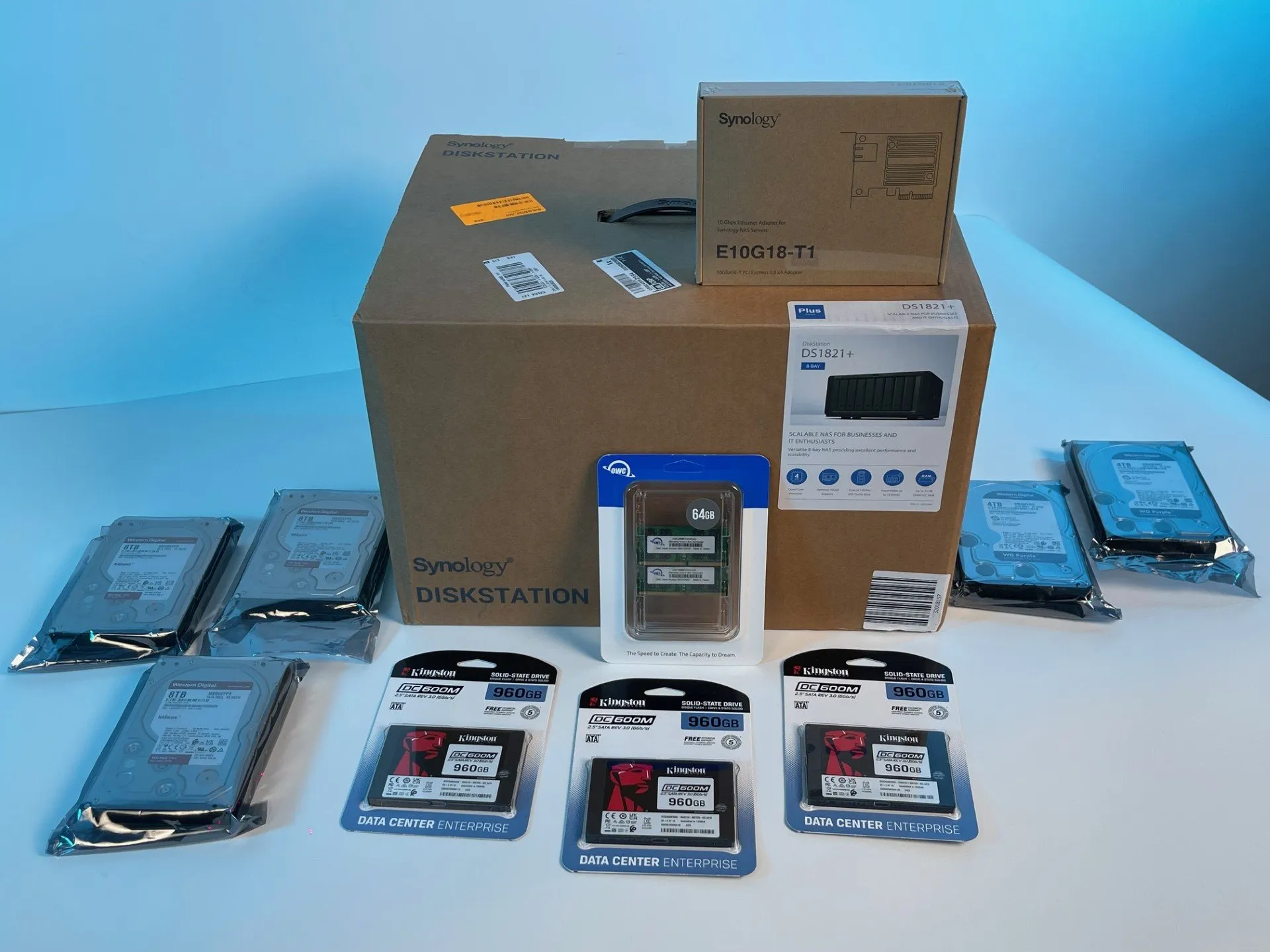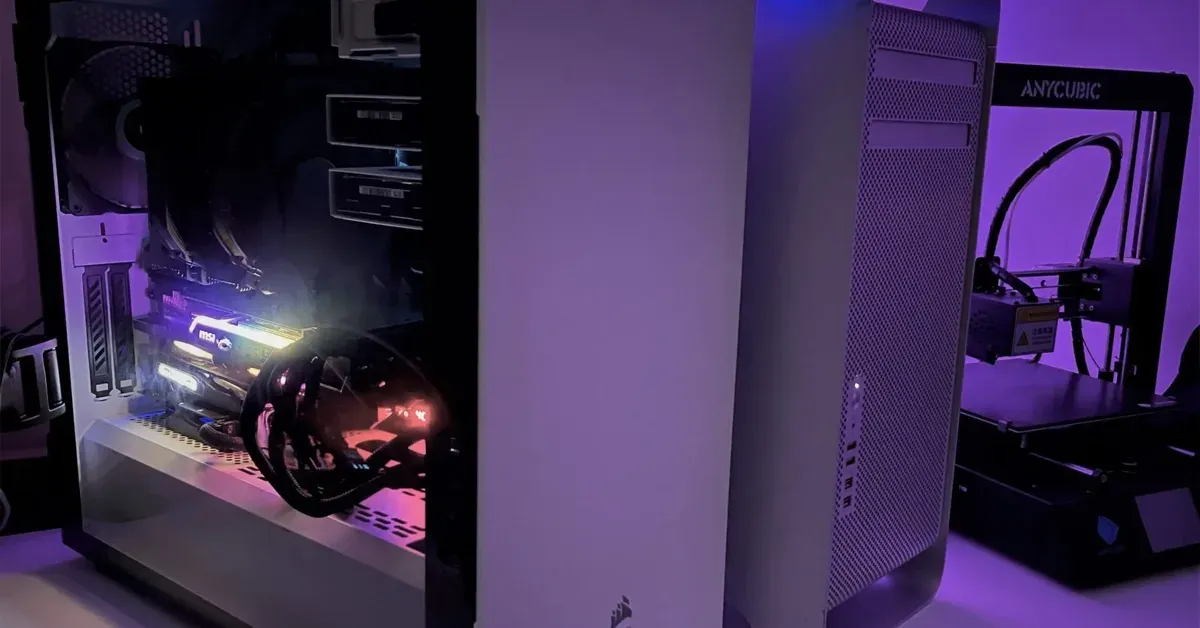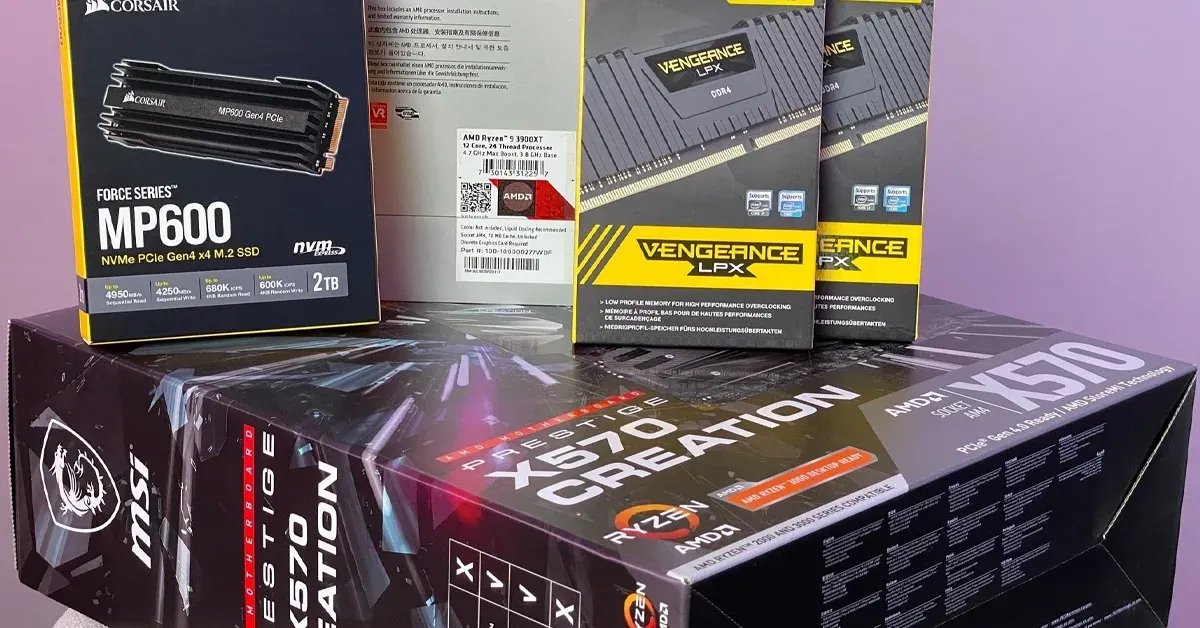
This blog explores creating a powerful VMware lab using a budget-friendly 24-core workstation, Synology NAS with SSD storage, and advanced networking setup, including a shift from MikroTik to Fortinet gateways. A hands-on guide for cost-effective, enterprise-ready cloud migration and virtualization.
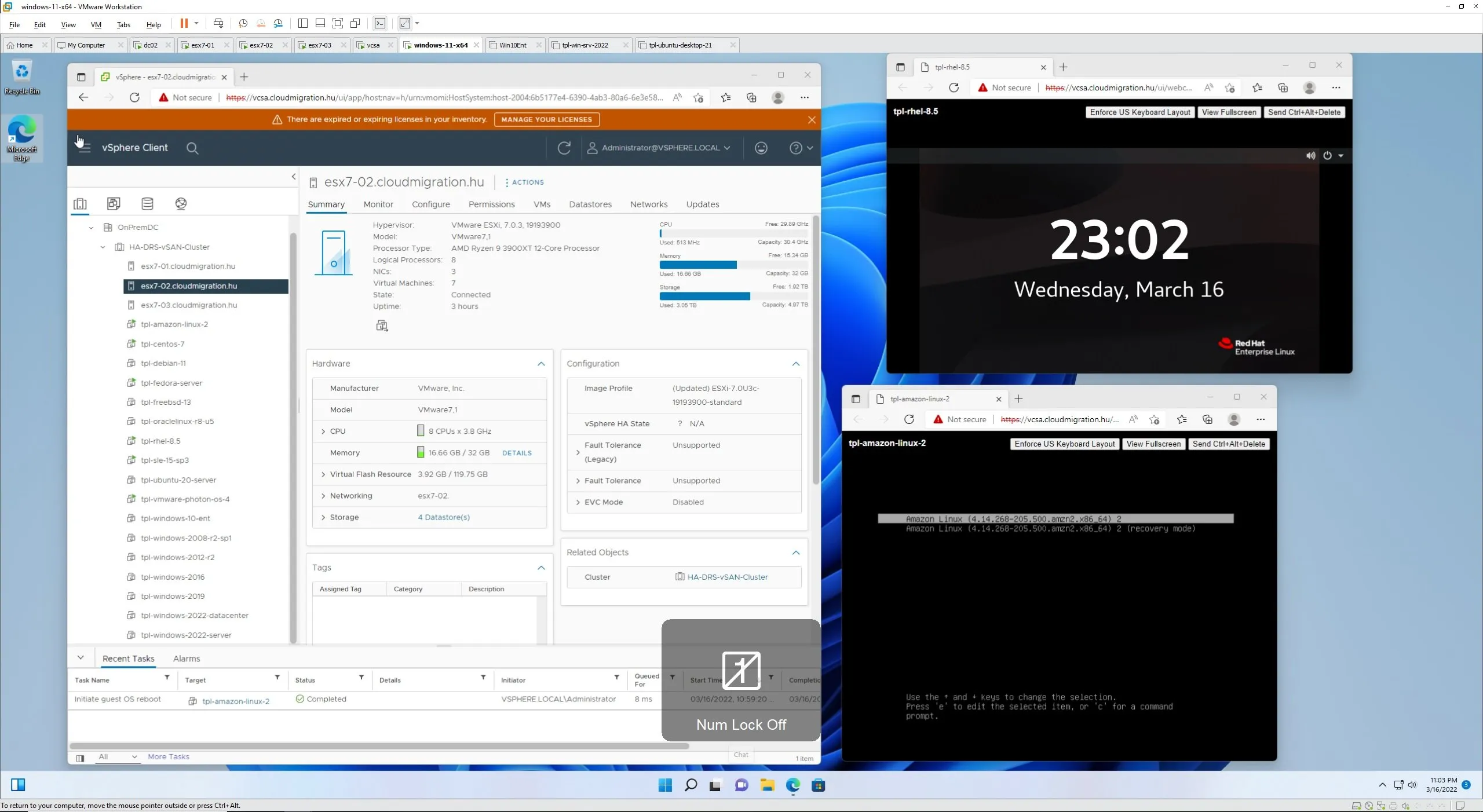
Recently, I have installed several template virtual machines in my lab. My primary objective is to automate large-scale migrations to the AWS Cloud using the AWS CloudEndure Migration Factory Solution. The secondary objective is to test VMware HCX-based migrations to Cloud. This article gives you an idea of how to prepare a vSAN-based nested LAB to achieve similar goals.
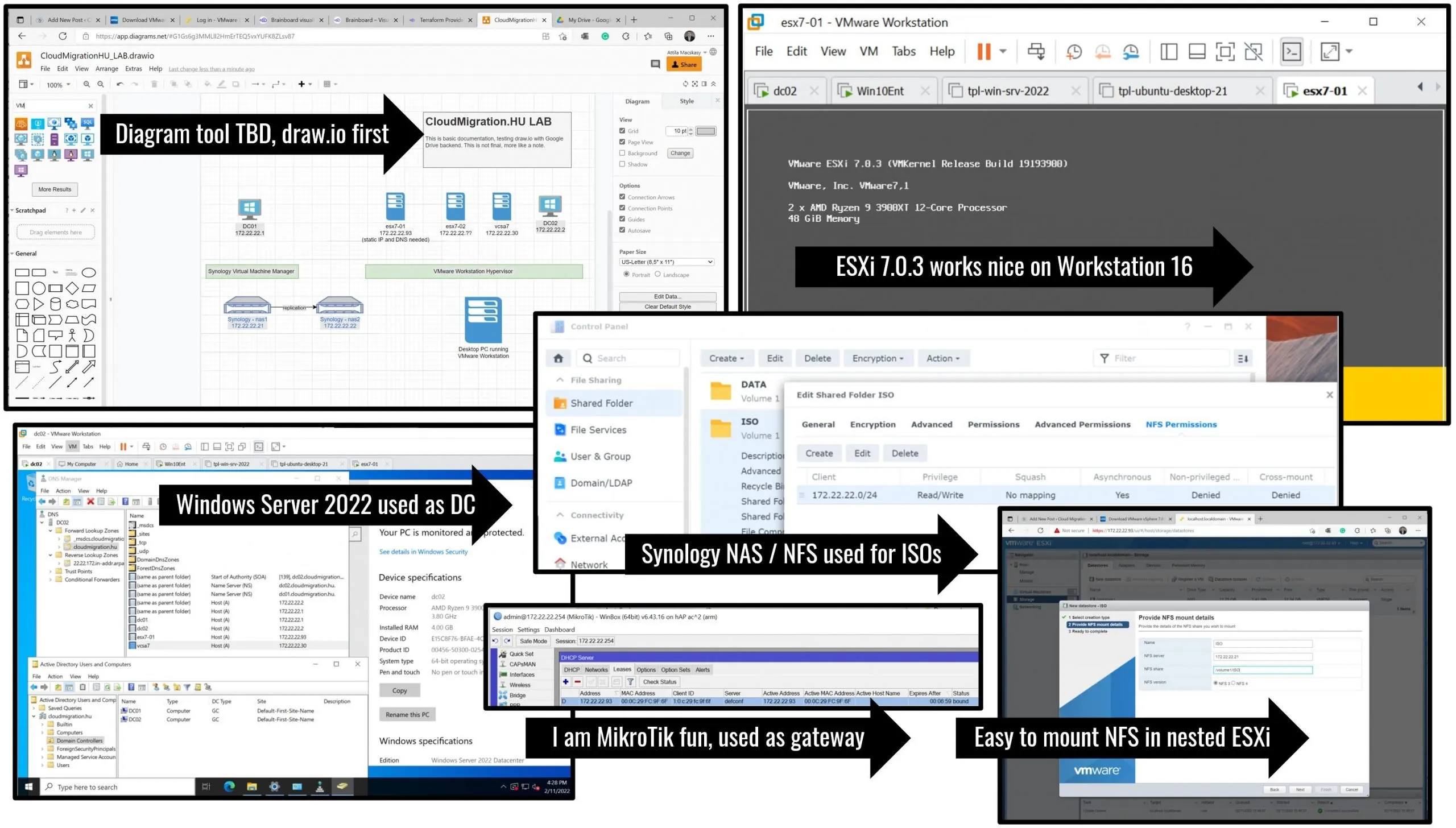
I am building my lab to support testing cloud migration tools. It is not only for "legacy" VMs but cloud native workloads as well. I deployed ESXi7 on nested Workstation 16, added Synology NAS via NFS to store ISOs, built core infra like DC on Windows Server 2022, and thought about the proper diagramming tool that supports the hybrid design and automated deployment.
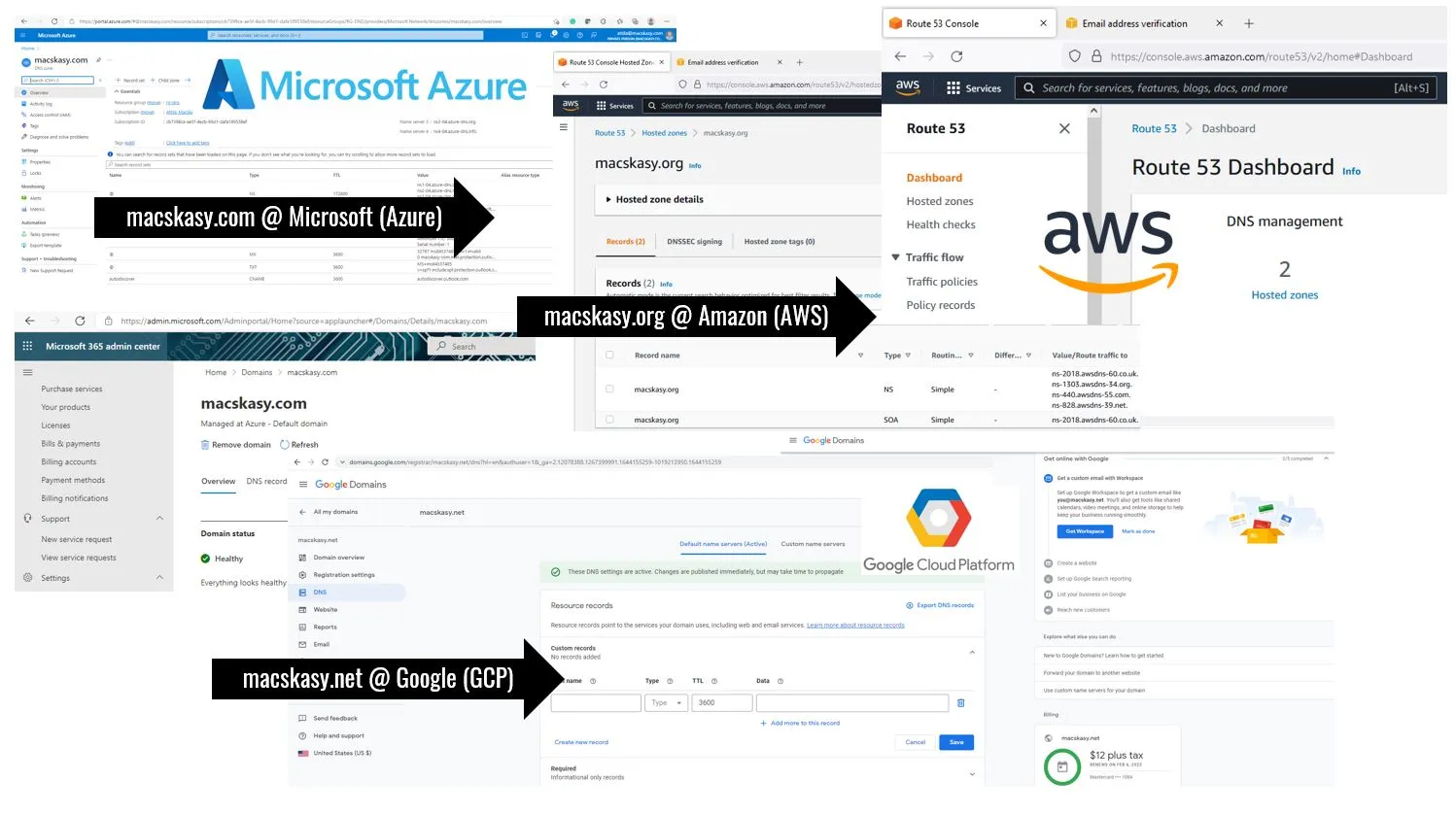
When you register a domain it is a big deal. It is your e-mail address, it is connected to your organization, you will use it in Cloud IAM and connected APIs. You will type it in CLI and pick it from GUI multiple times. I added my experiences with Microsoft Azure/M365/Teams and AWS Route 53/Chime as well.
This is a comparison of whether the 10-year-old server hardware can keep up with today's desktop computers. The nested virtualized lab seemed better on the Desktop.