The perfect nested virtualization-based demo LAB: Basics, vCenter, vSphere, shared storage, networking
I am building my lab to support testing cloud migration tools. It is not only for "legacy" VMs but cloud native workloads as well. I deployed ESXi7 on nested Workstation 16, added Synology NAS via NFS to store ISOs, built core infra like DC on Windows Server 2022, and thought about the proper diagramming tool that supports the hybrid design and automated deployment.
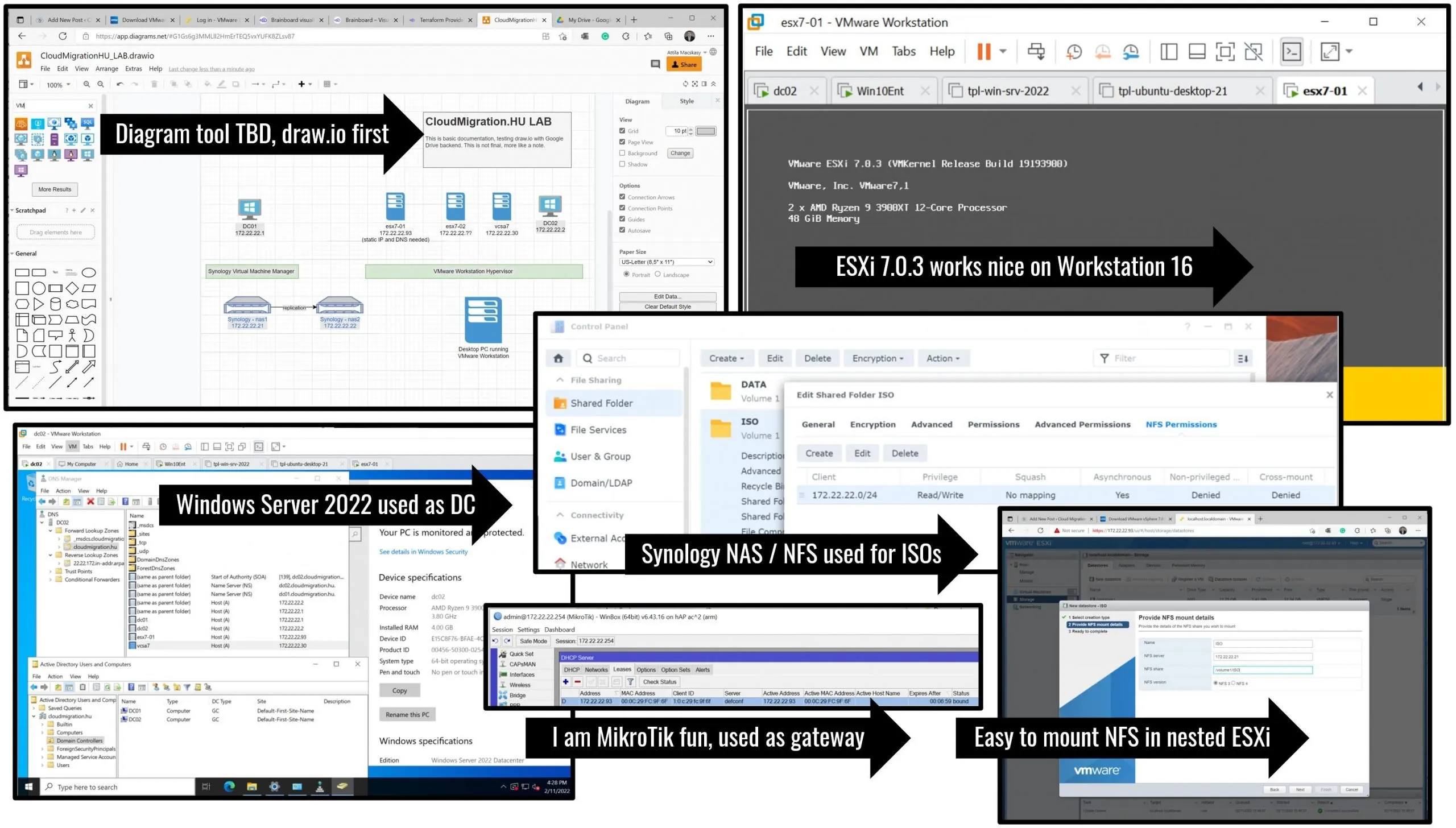
I am building my lab to support testing cloud migration tools. It is not only for “legacy” VMs but cloud native workloads as well. I deployed ESXi7 on nested Workstation 16, added Synology NAS via NFS to store ISOs, built core infra like DC on Windows Server 2022, and thought about the proper diagramming tool that supports the hybrid design and automated deployment.
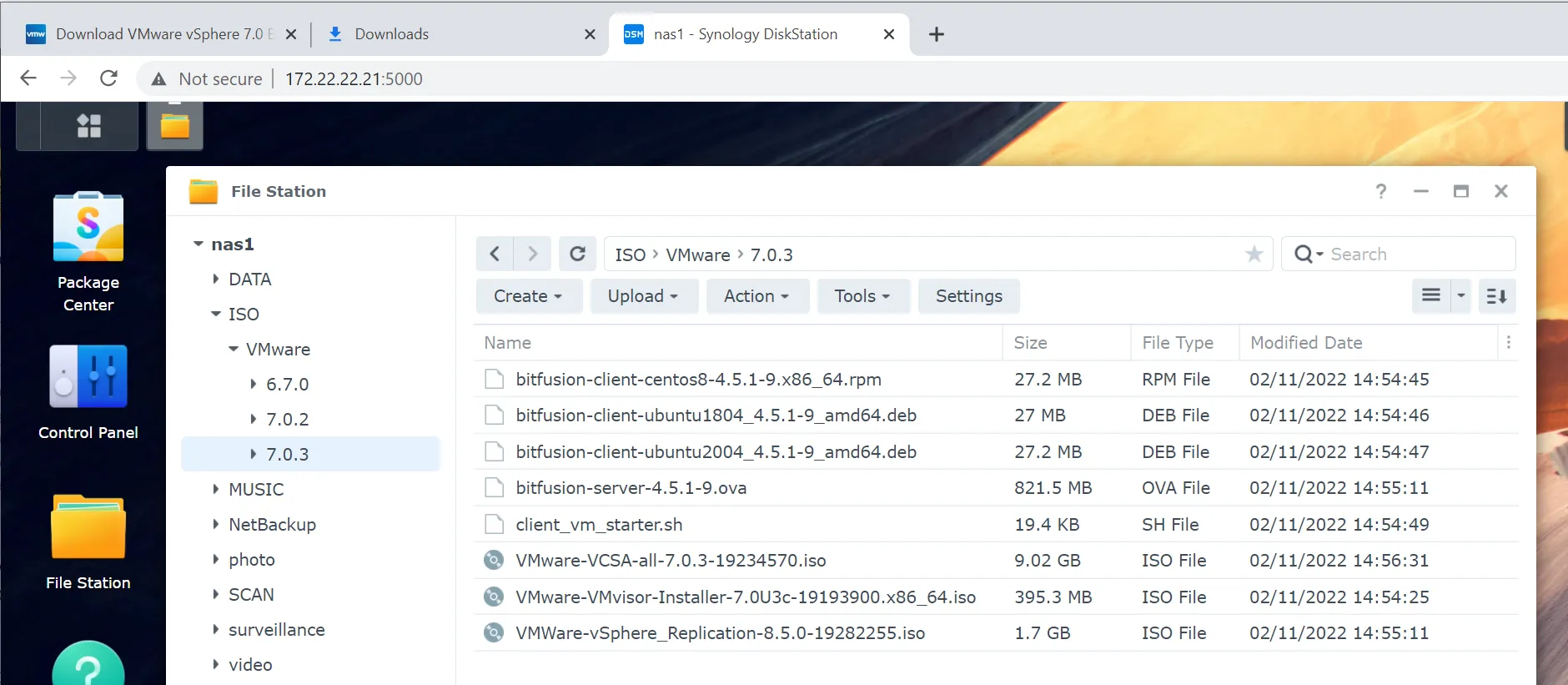
My on-premises LAB is obviously a VMware-based virtualized environment. Various OS VMs, databases, app servers, web front end, everything. Later, I will add Kubernetes in various ways, not only Tanzu but Ubuntu, Red Hat planned. First things first, let’s get the binaries from VMware.
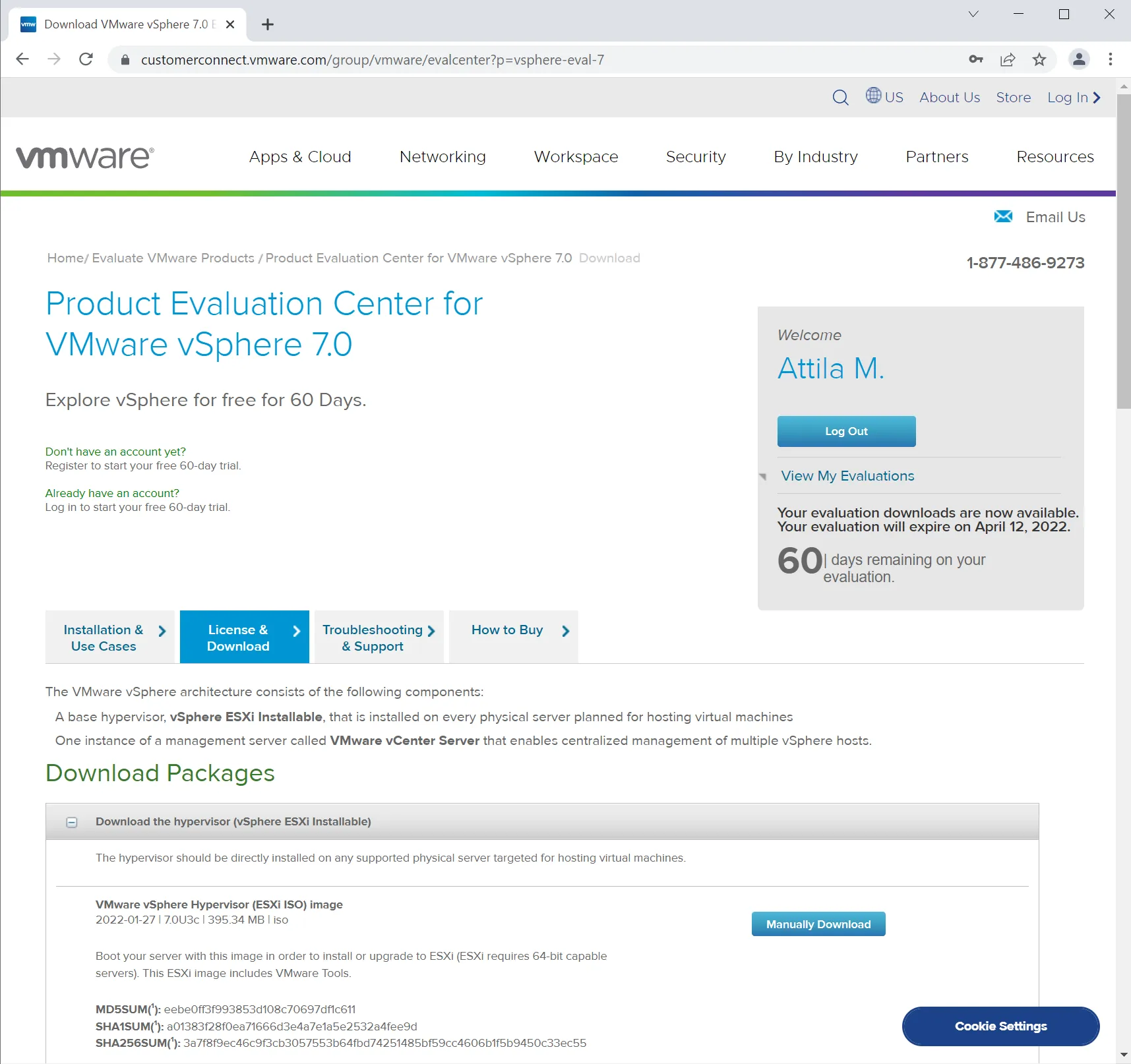
Today, the versions are
Hypervisor: VMware vSphere Hypervisor (ESXi ISO) image (2022-01-27) | 7.0U3c | 395.34 MB | iso
Management appliance: VMware vCenter Server Appliance (2022-01-27) | 7.0U3c | 9.02 GB | iso
You need to get these files via product EVAL from VMware to start building your lab.
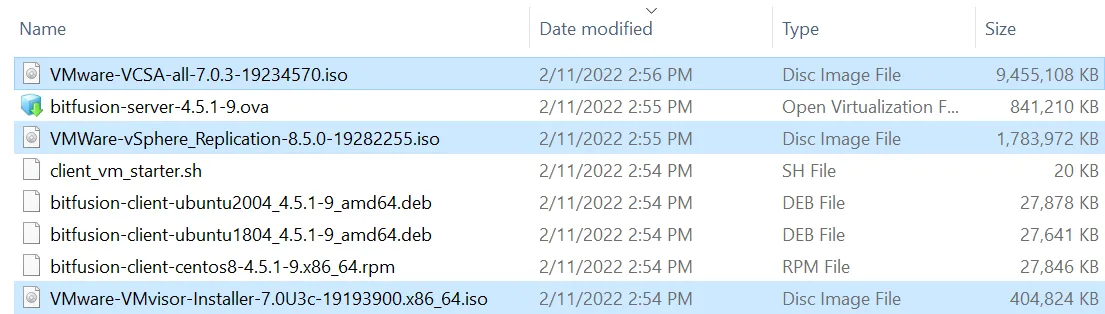
Essential files to deploy the vSphere environment.
Previously I deployed 7.0.2, but let’s redo it together, so I wipe everything and redo.
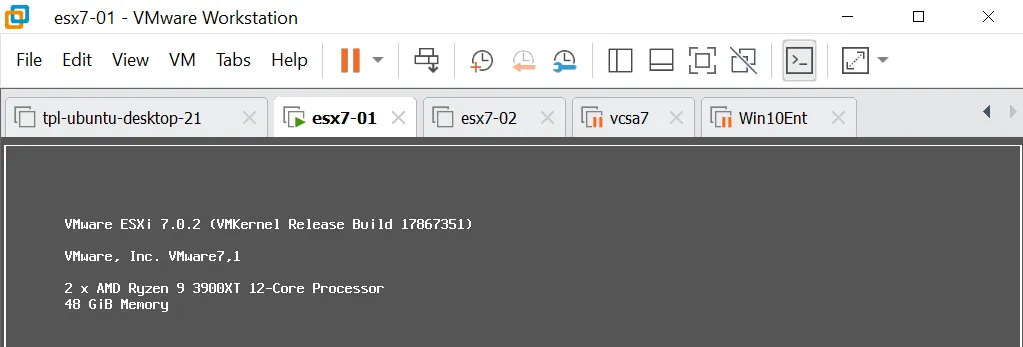
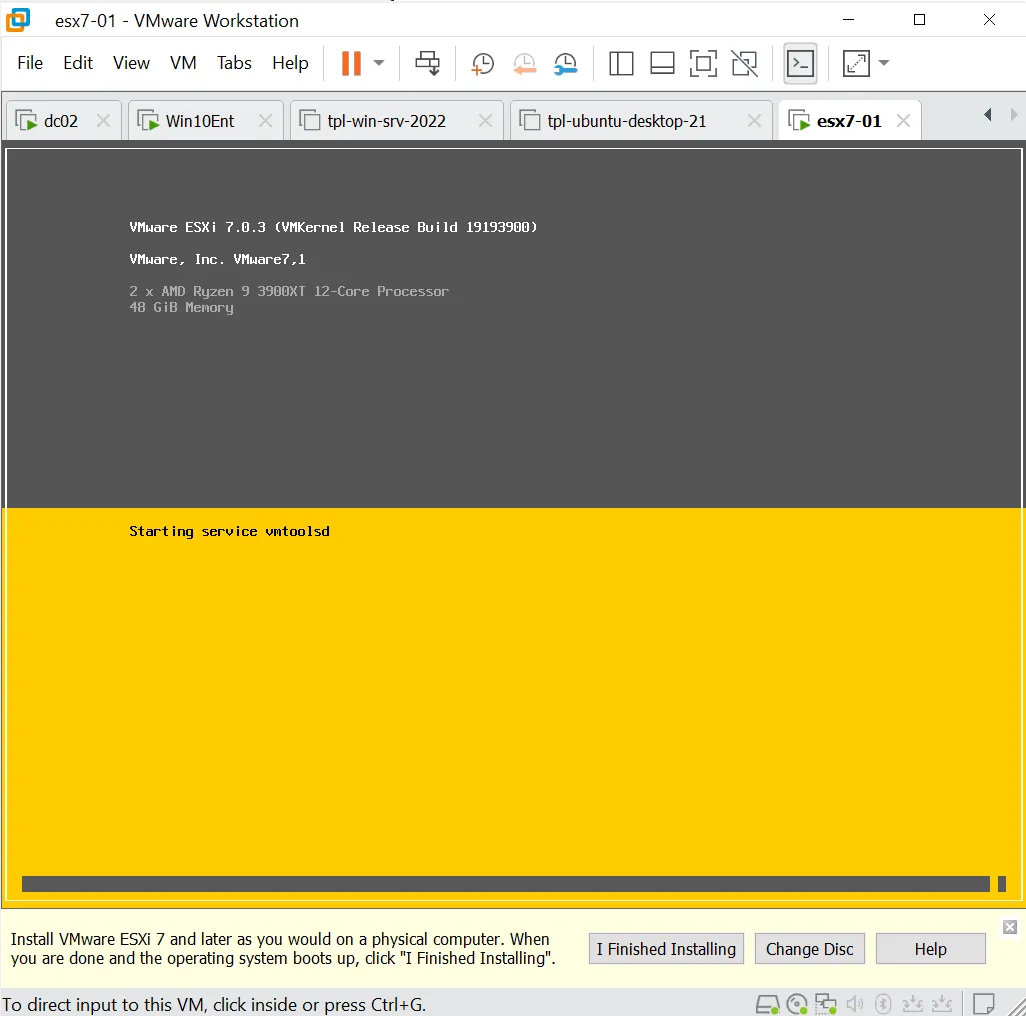
Let’s create a VM on VMware Workstation using the ISO.
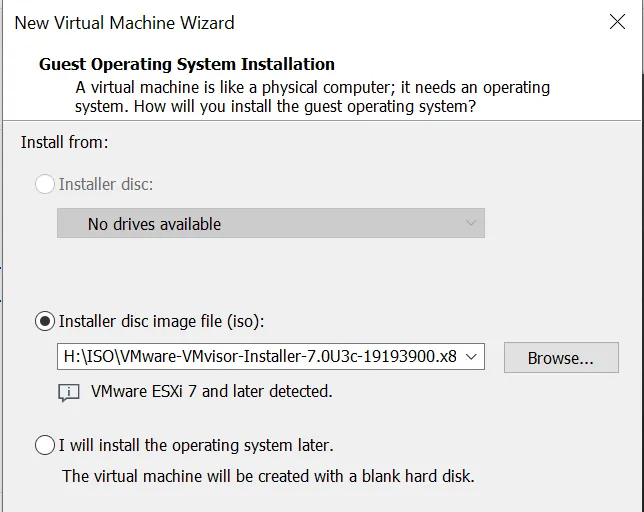
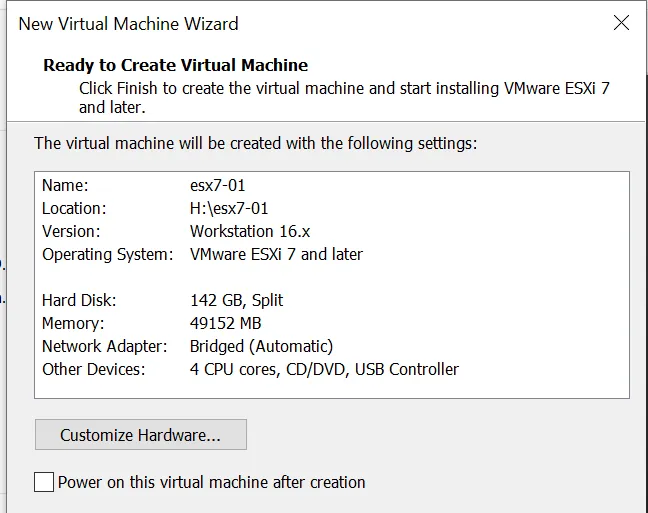
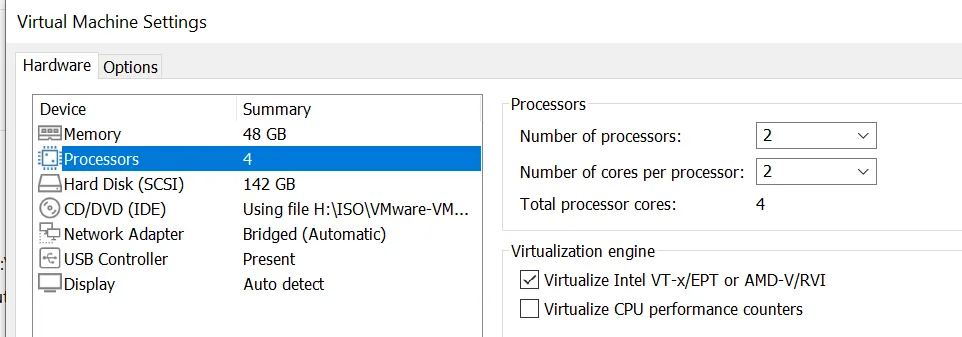
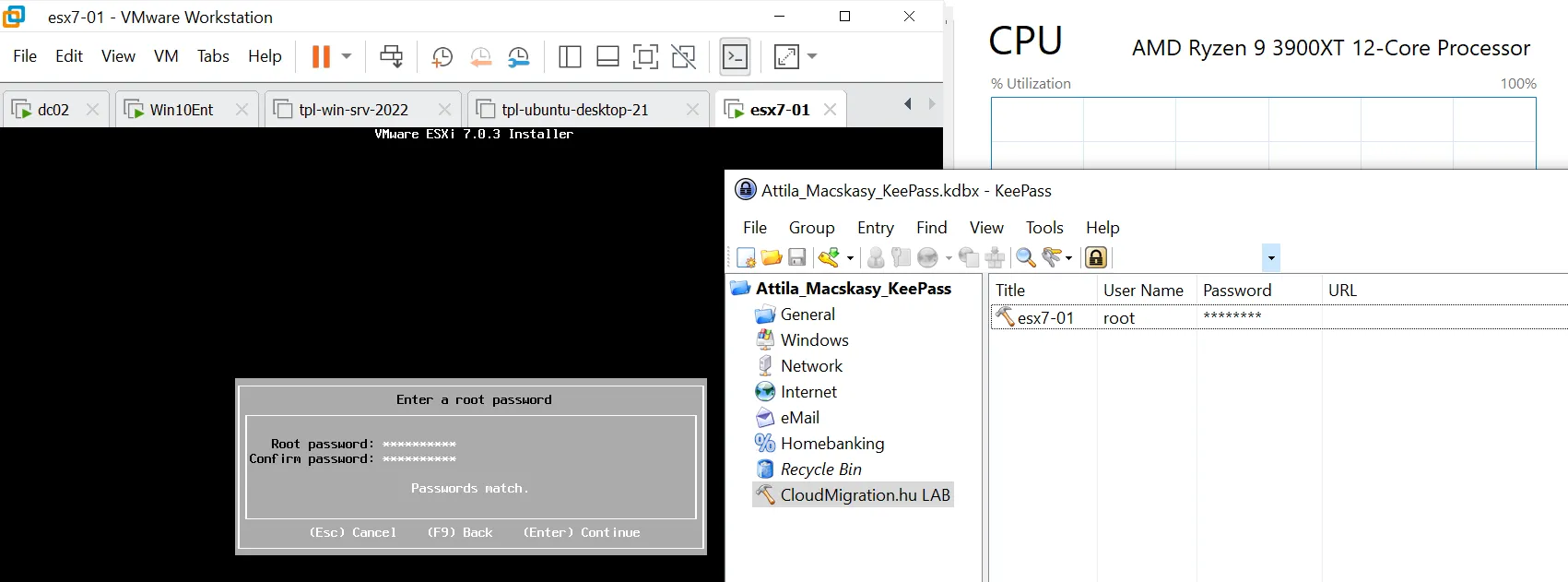
I used free KeePass Password Safe for my lab. However, I can’t wait to see integrations and have one password or no password. This is an amazing company that might bring this to the world Meet our team | 1Password.
Before any deployment, you should start with the design and diagrams of networking, nodes, etc. Do not worry, I will have it for you. As our lab gets more complex, I will share both documentation and automation scripts to get something similar done by yourself.
Installation completed in no time, after reboot, vSphere Web console works. Remember, there is no Windows-based thick UI console anymore, VMware dropped that at version 6.7. We have only web-based, but that’s OK. Younger people will not miss the old Windows App (*.exe) GUI.
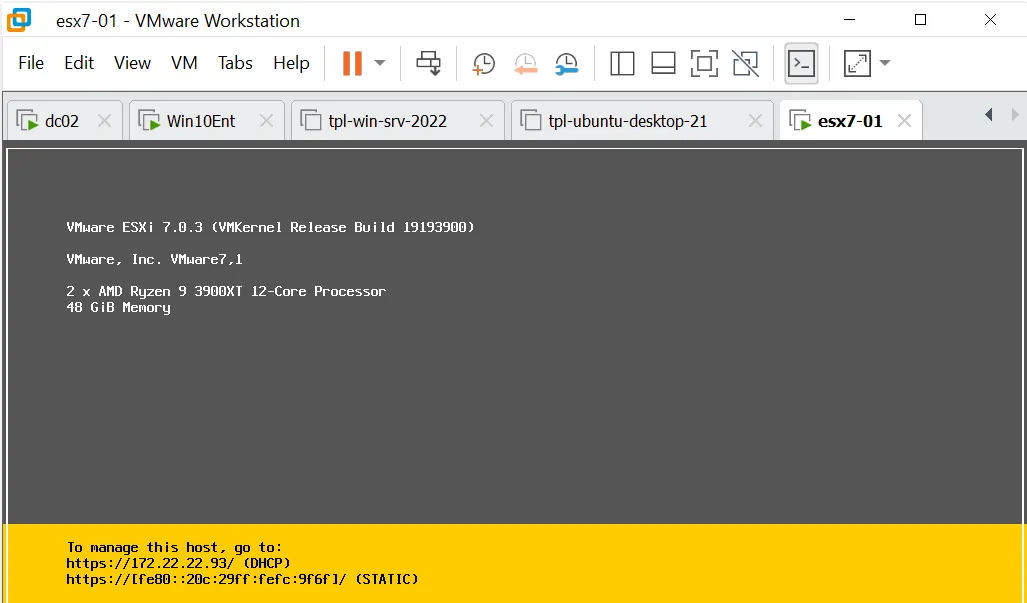
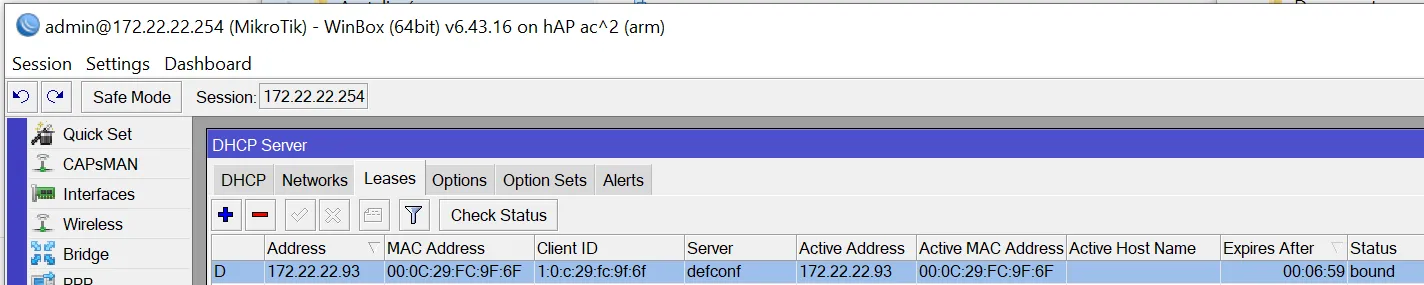
I have a home NAS here as do probably many other people. Actually, I have 2 of them and they replicate their RAID arrays. The good news is that Synology can do NFS and you can mount it on nested vSphere. This makes your life a bit easier with ISO images.
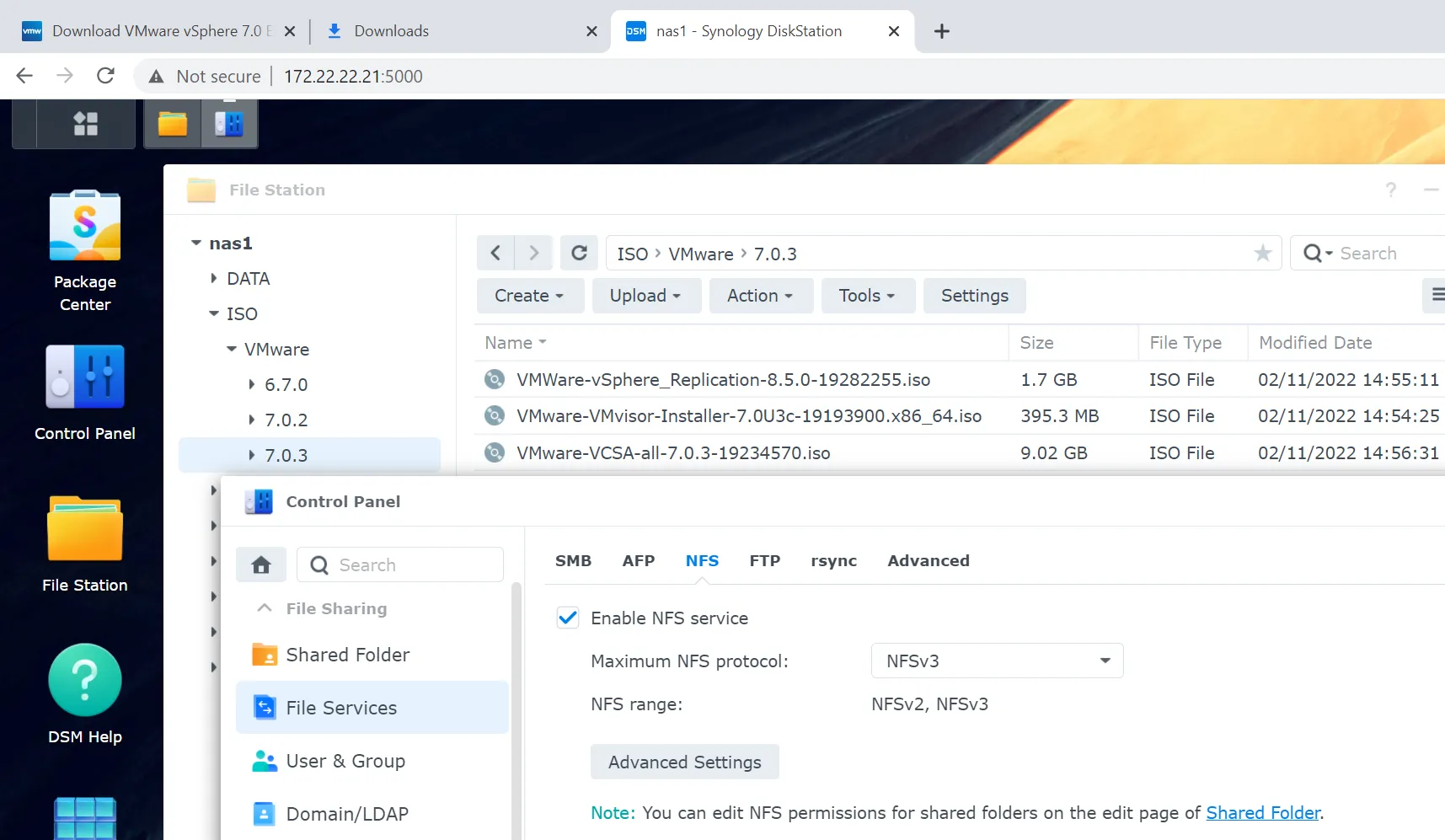
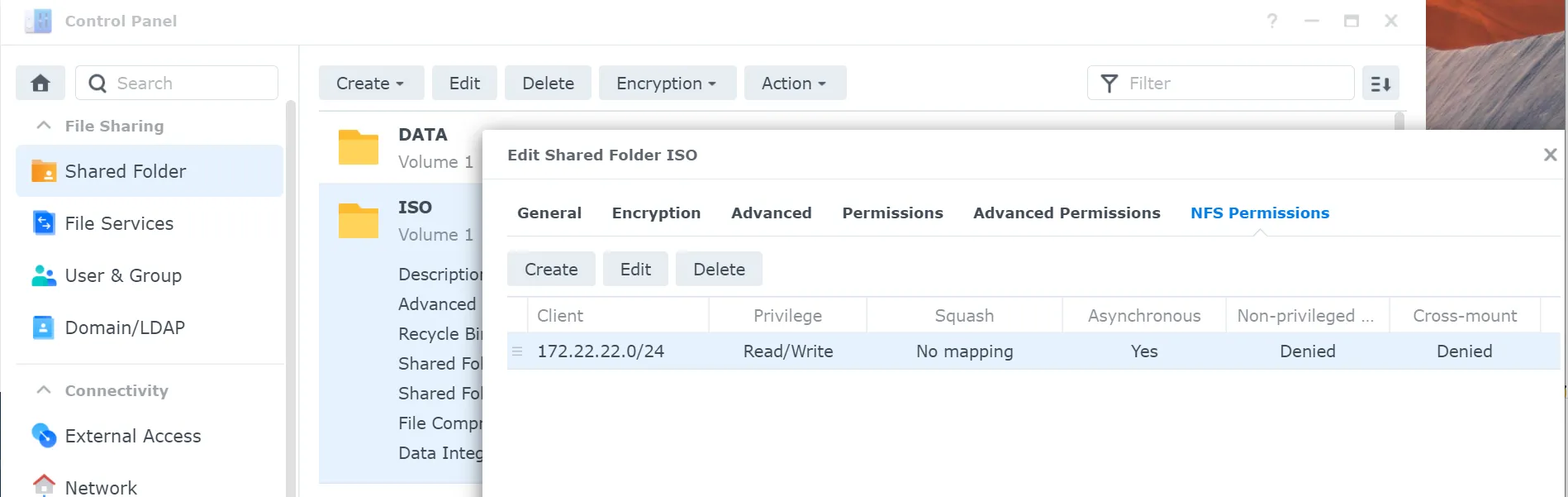
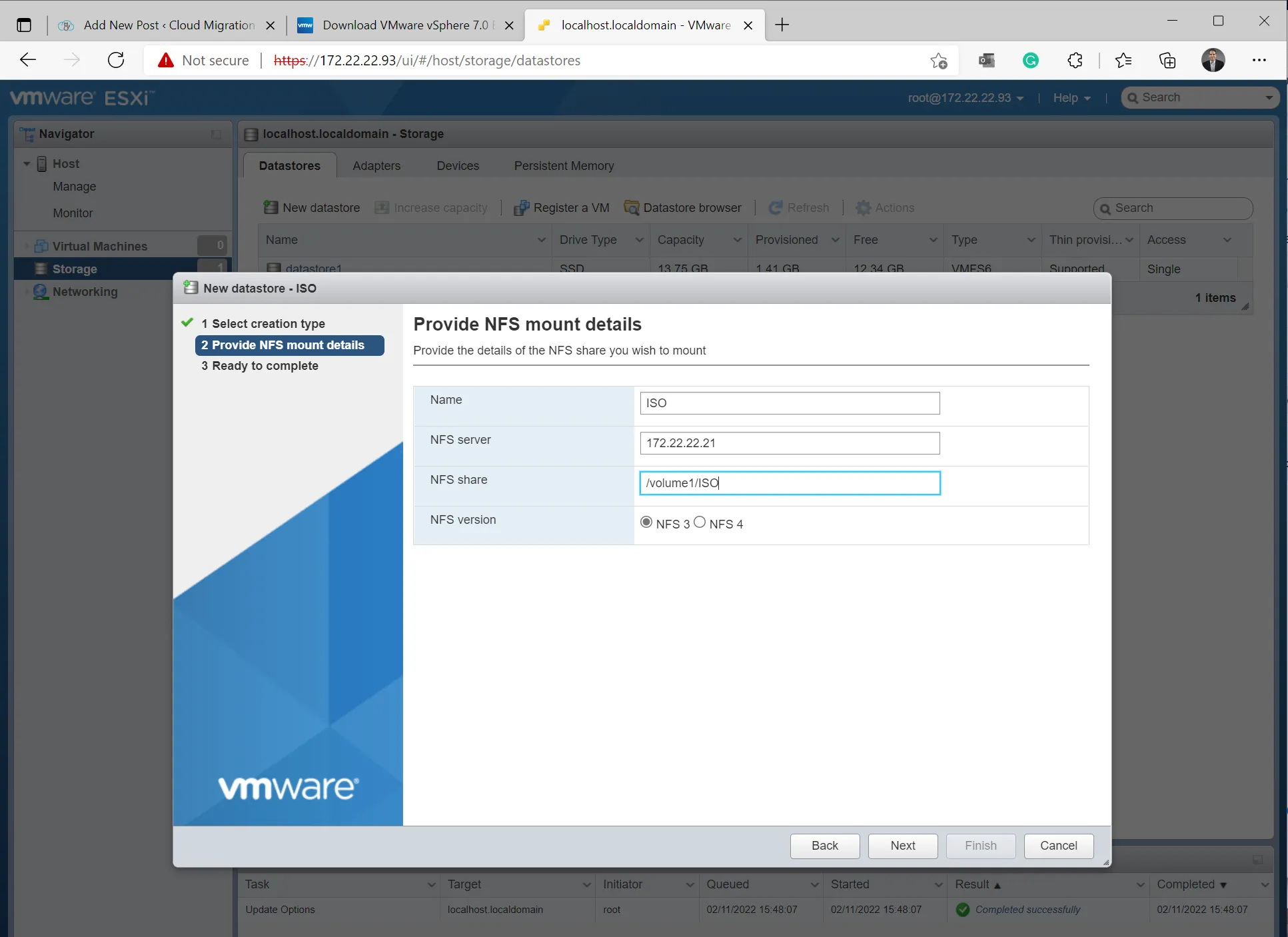
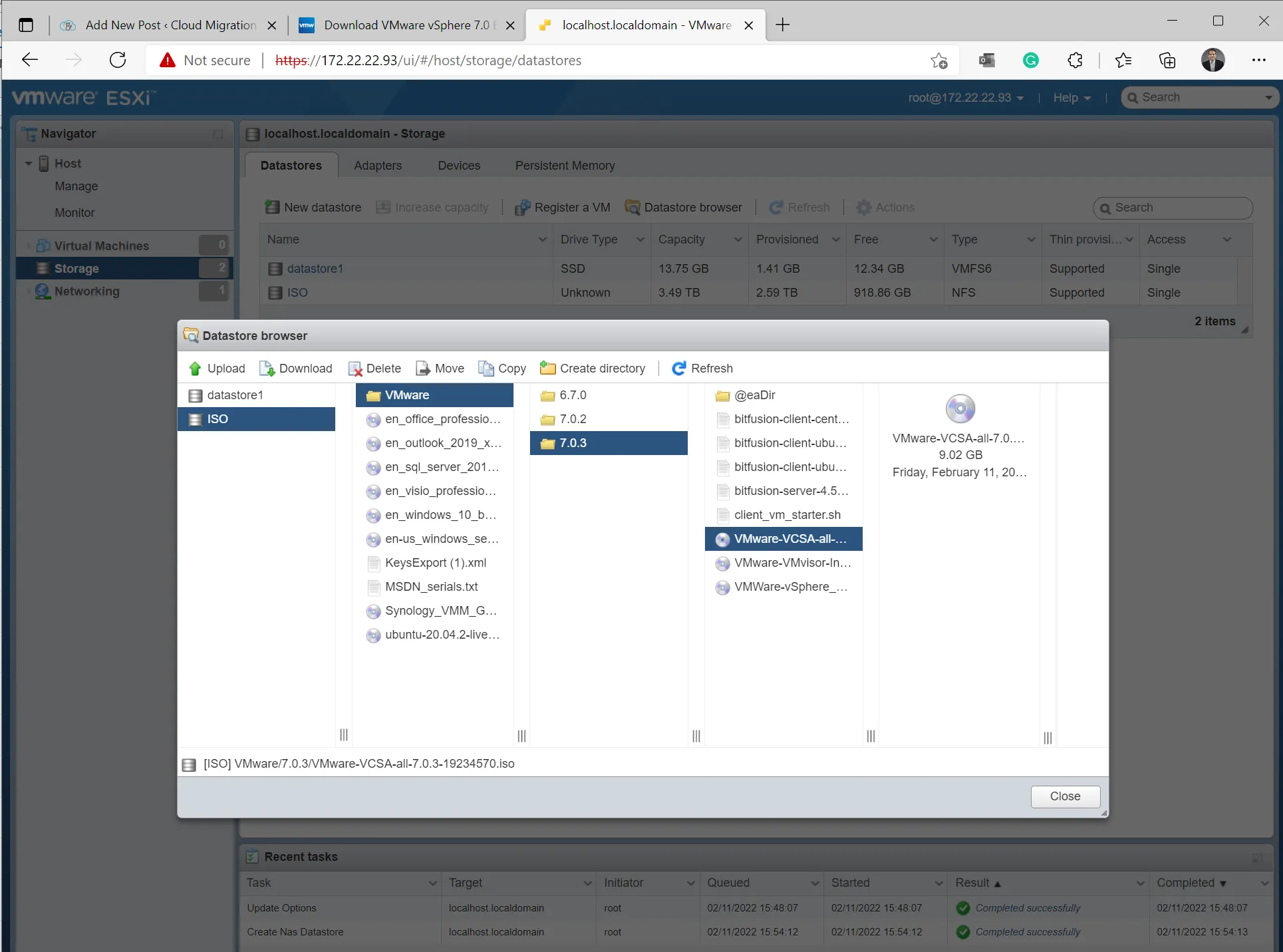
This is how to mount the NFS server on vSphere.
Documentation? I love building documentation. But only nice and useful ones. I found Brainboard – Visually build your Cloud infrastructure and manage your Terraform workflows recently, and I like it because it supports 3 clouds and generates Terraform to automate deployments. The issue is I can’t model my physical source system here, yet. Hopefully, more people will see potential in having a Hybrid design tool Terraform Provider: VMware | Brainboard, Docs overview | hashicorp/vsphere | Terraform Registry
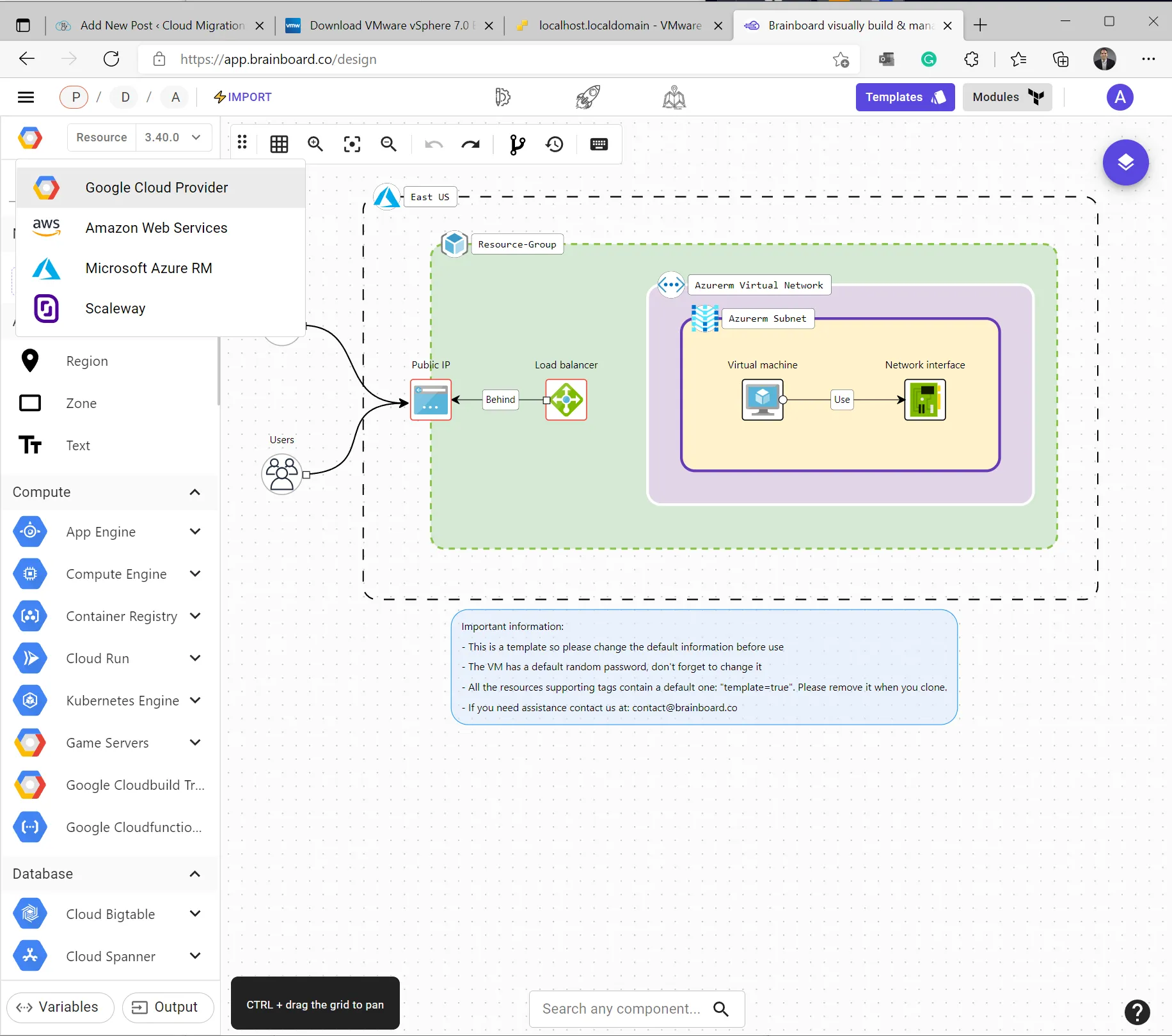
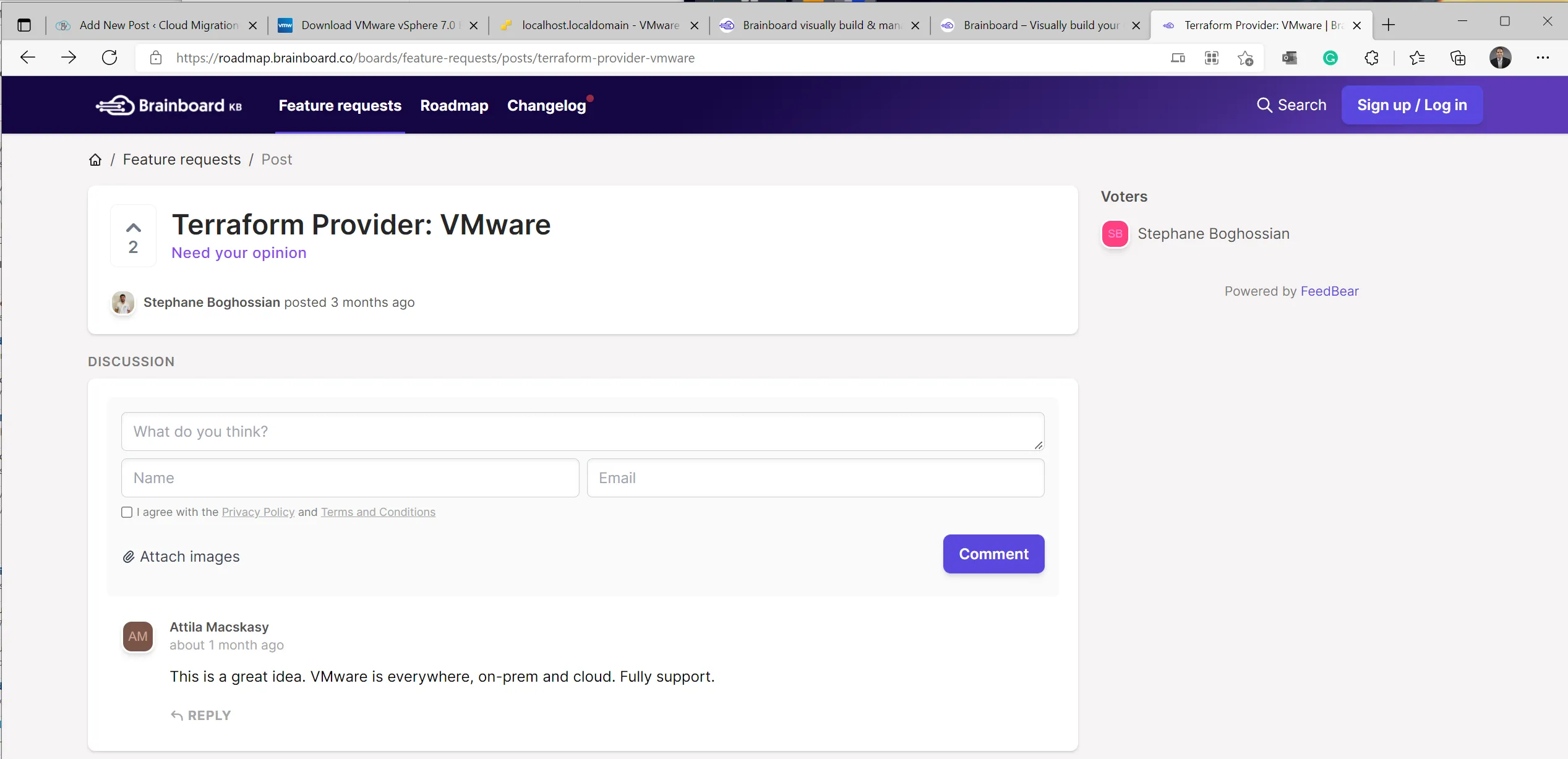
One day, I will generate my entire lab from a diagram. Both on-prem and cloud, including VMware in Hybrid deployment.
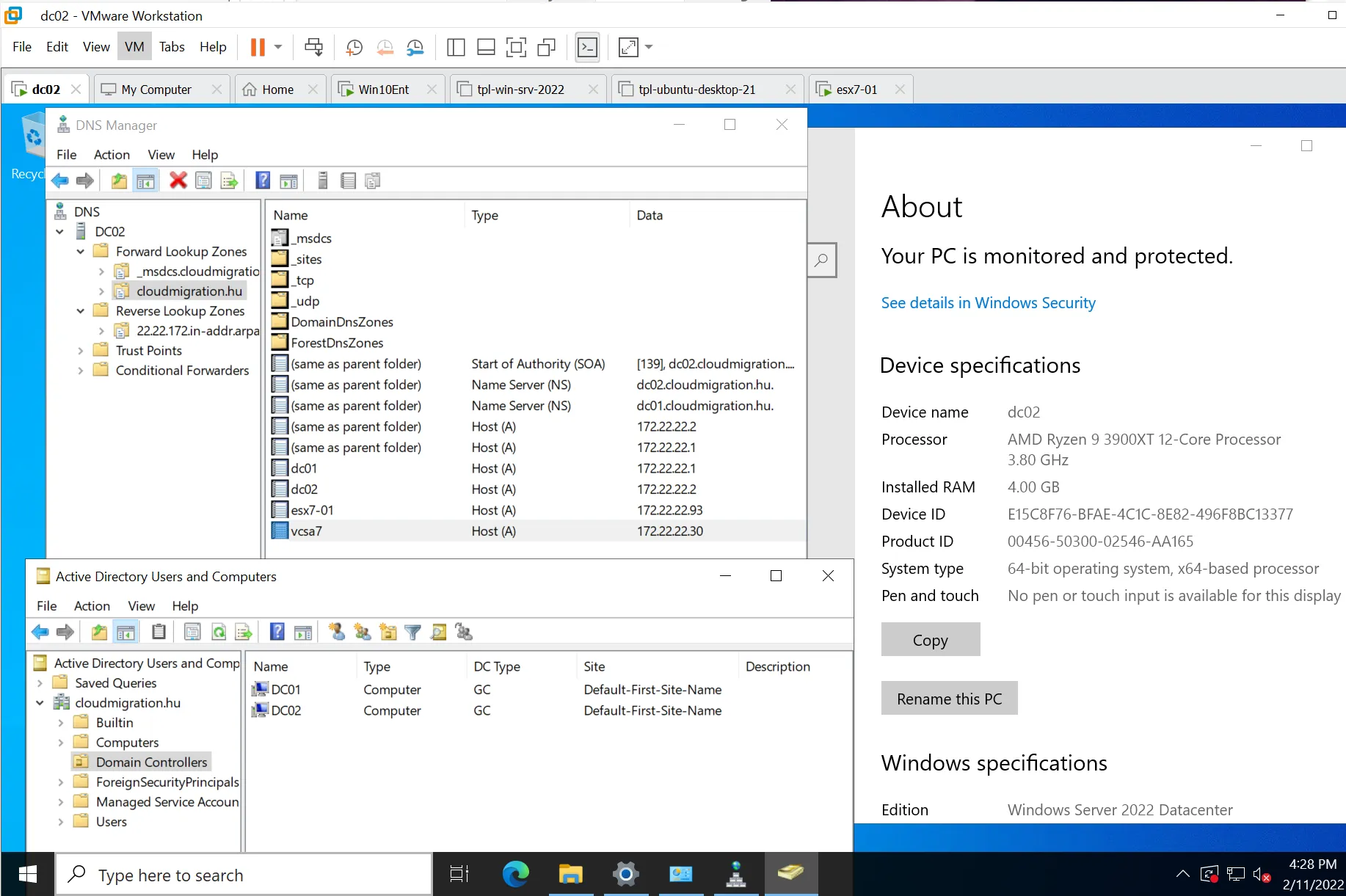
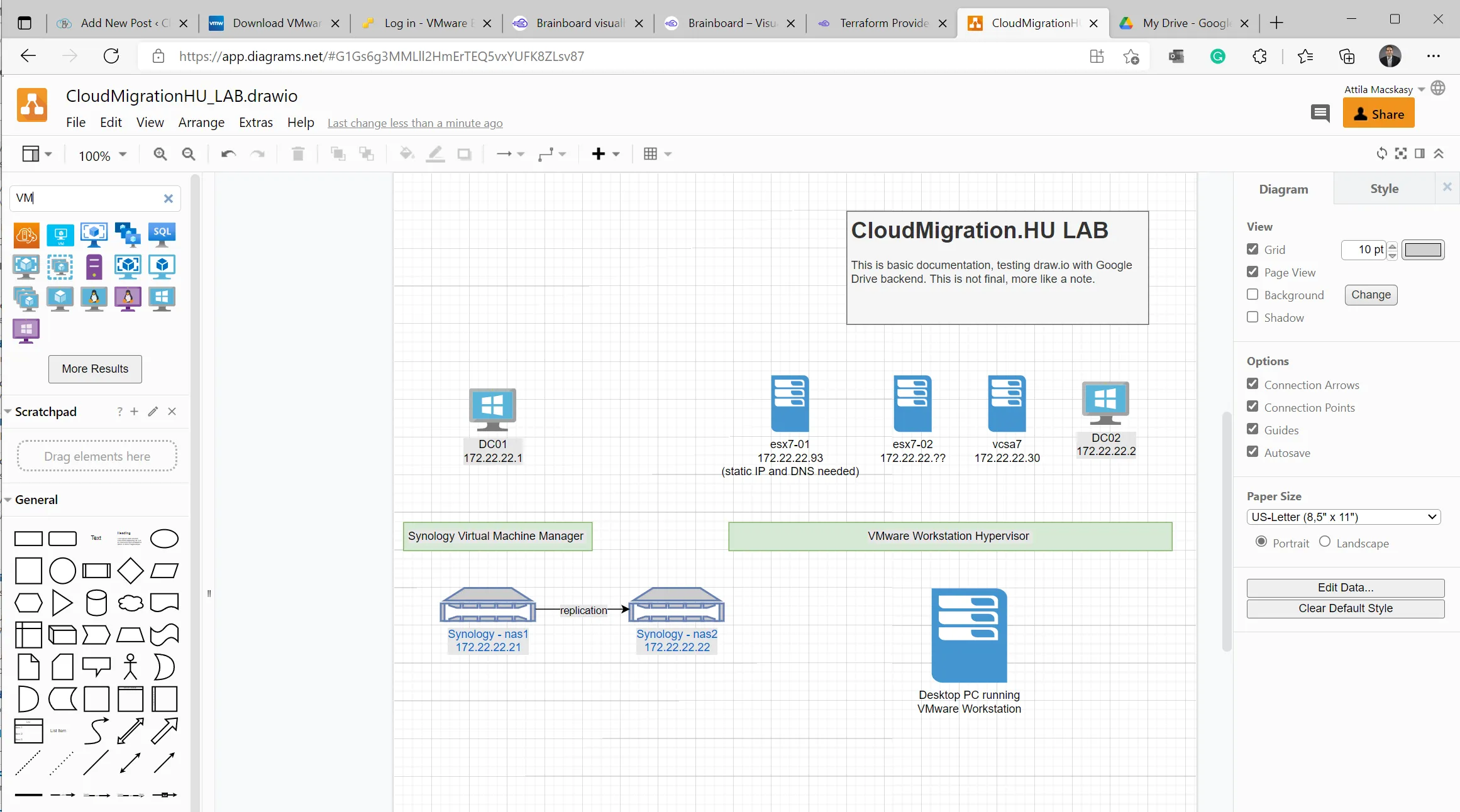
That’s it for today. I will continue the deployment as time permits and keep you posted. Add vCenter, NSX-T, everything. I am going to deploy Terraform and try to automate source system deployment, will see how much time I can save by adding DevOps to lab automation.
Next time I continue to work from macOS and see if I can be as productive as on my Windows box. I want my blog and lab administration to be platform-independent to make sure I am not excluding people using something different from Windows 10/11. DIB stands for Diversity, Inclusion, and Belonging for All (linkedin.com) in my vocabulary.