Oracle Database Service for Azure - linking subscriptions
As part of my multi-cloud research, I wanted to test Oracle Database Service for Azure. In this article, you will see how to sign up for the new service and how to link Oracle and Azure accounts. I used Frankfurt datacenters, Azure MSDN, and an OCI paid account (Free Tier does not work) using my private Azure Active Directory.
by Attila Macskasy··4 min read·1,870 views
As part of my multi-cloud research, I wanted to test Oracle Database Service for Azure. In this article, you will see how to sign up for the new service and how to link Oracle and Azure accounts. I used Frankfurt datacenters, Azure MSDN, and an OCI paid account (Free Tier does not work) using my private Azure Active Directory.
First and foremost, my biggest learning from testing Oracle Database Service for Azure is this: you need to have a paid OCI account, it will not work with the Free Tier offering.
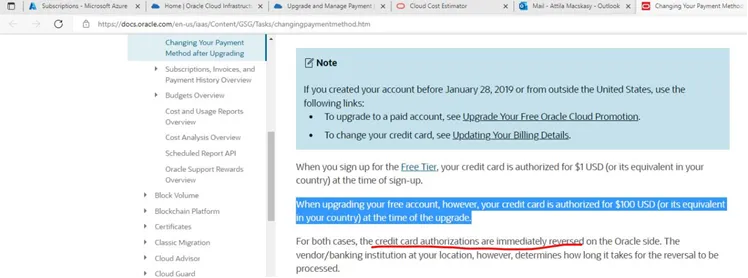
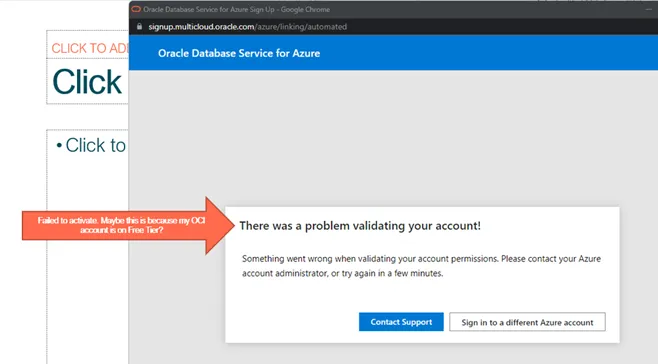
Upgrading Free Tier to a paid account will cost you a temporary (?) 100 EUR…If you do not upgrade your OCI subscription to a paid account you will get this error message:“There was a problem validating your account!” - you have to be quite smart to figure out what’s the real problem here. I wish someone told me this when I was wasting time - but finally got the idea of what could be the issue here :-)
The next thing is to think and design a little before you start clicking on the cloud portals. Azure and Oracle Cloud-link is a networking-heavy exercise, you have to be keen on what you enter into the networking dialogue to deploy this right. Automation will help you to connect clouds behind the scenes, but only if you provide the proper networking details.
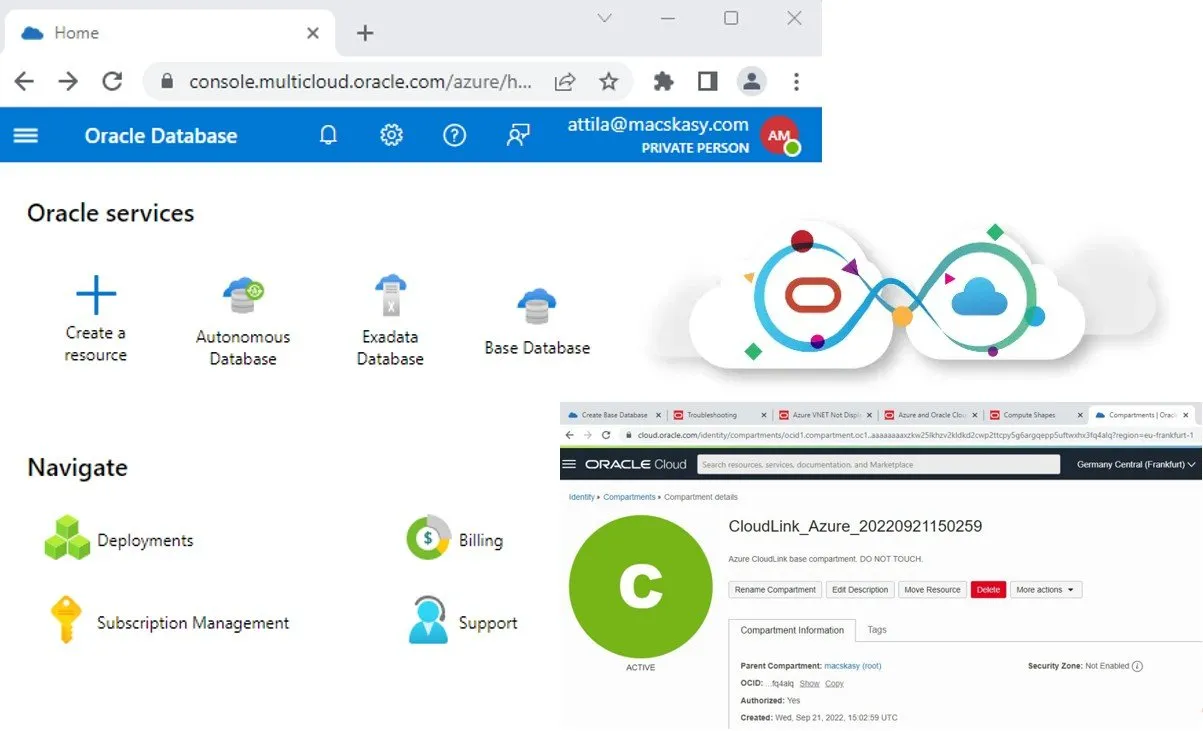
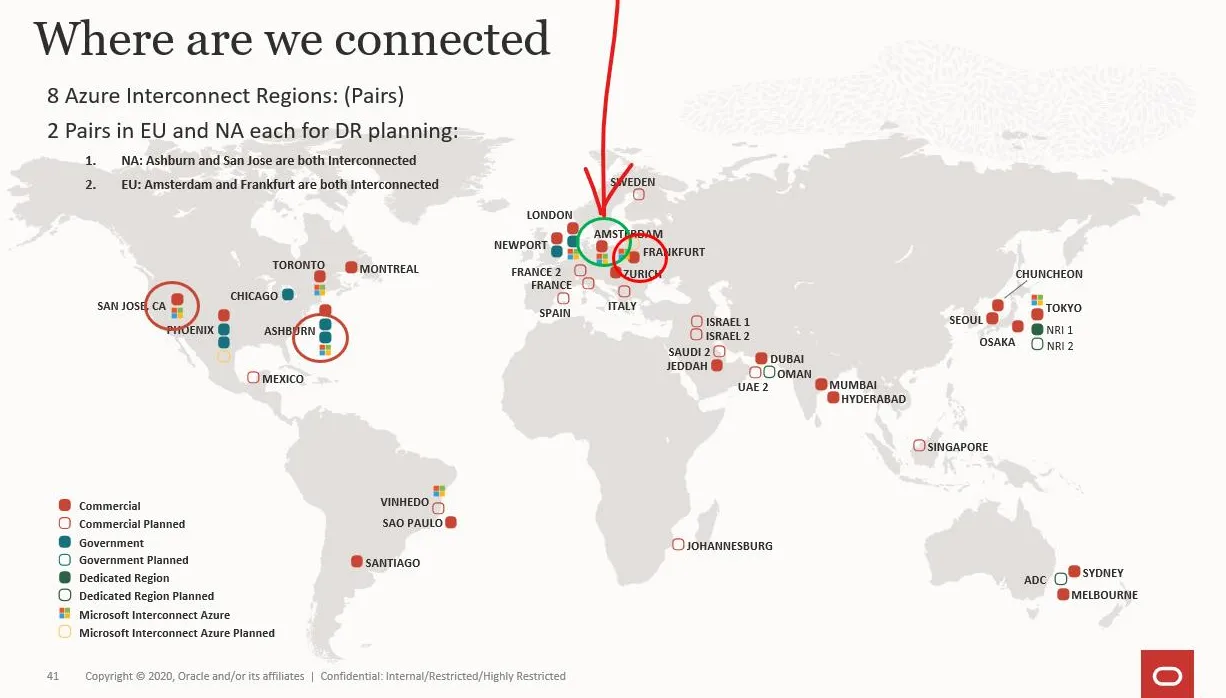
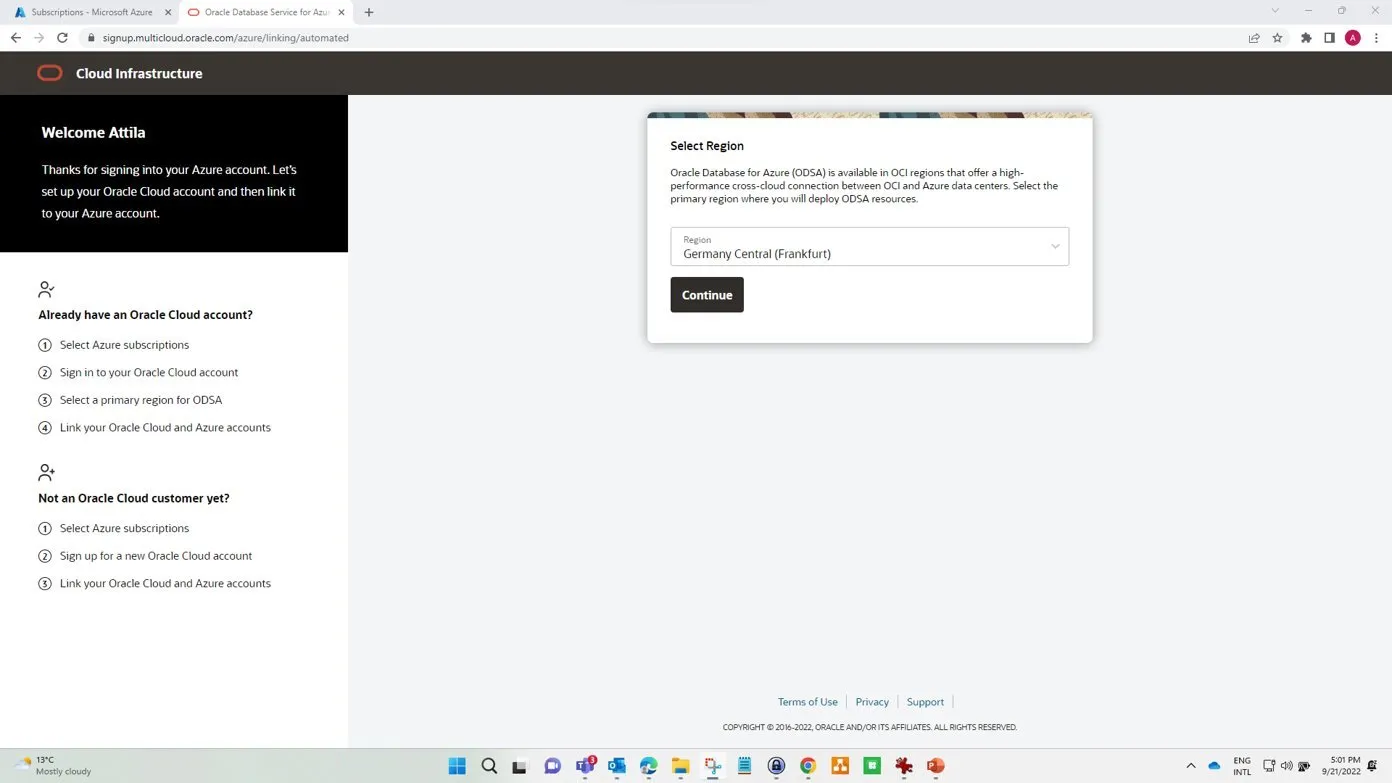
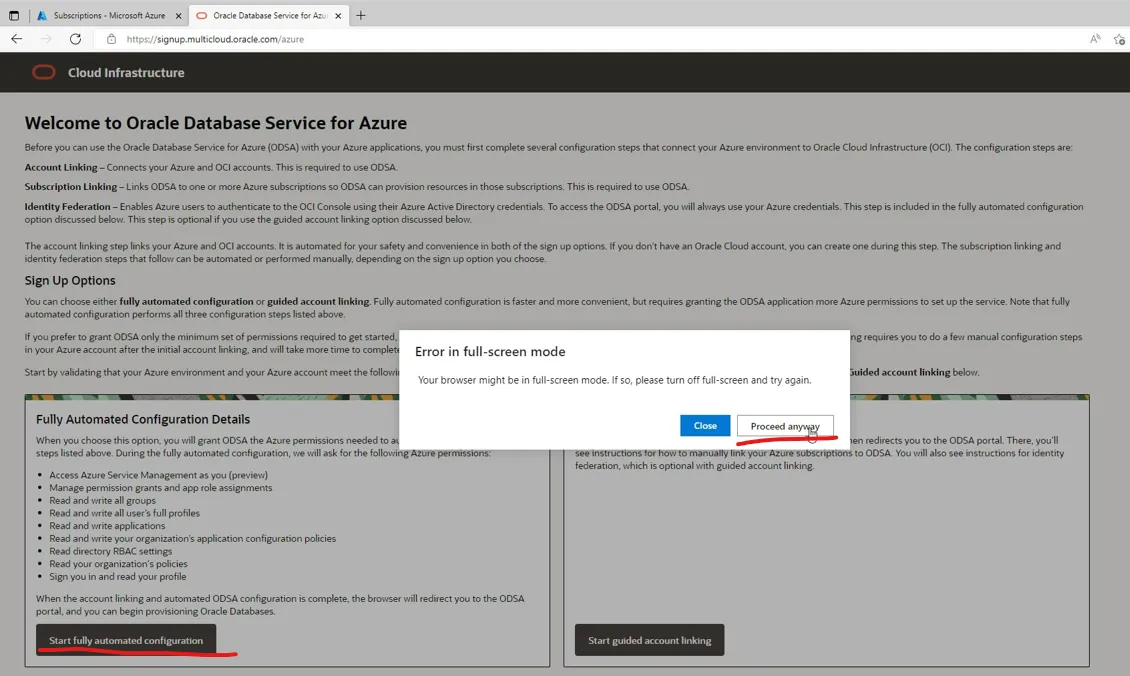
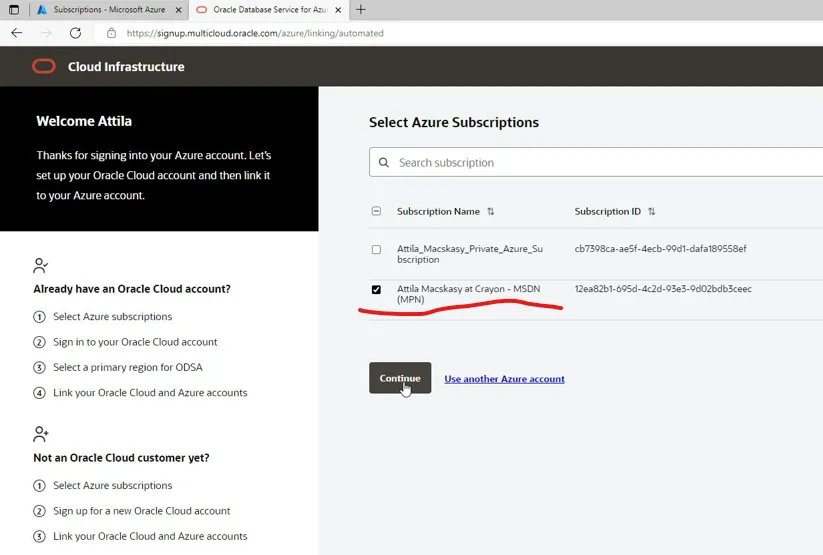
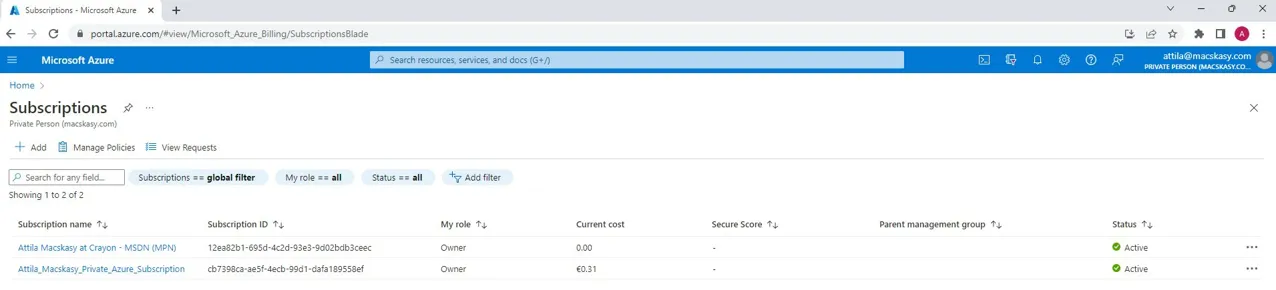
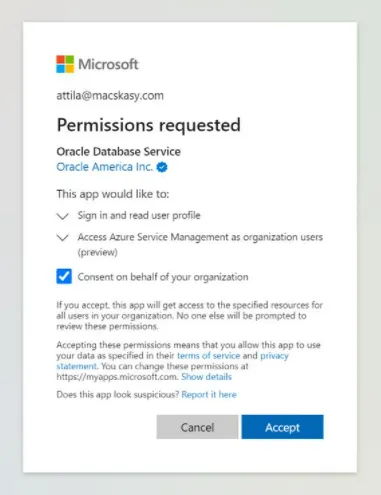
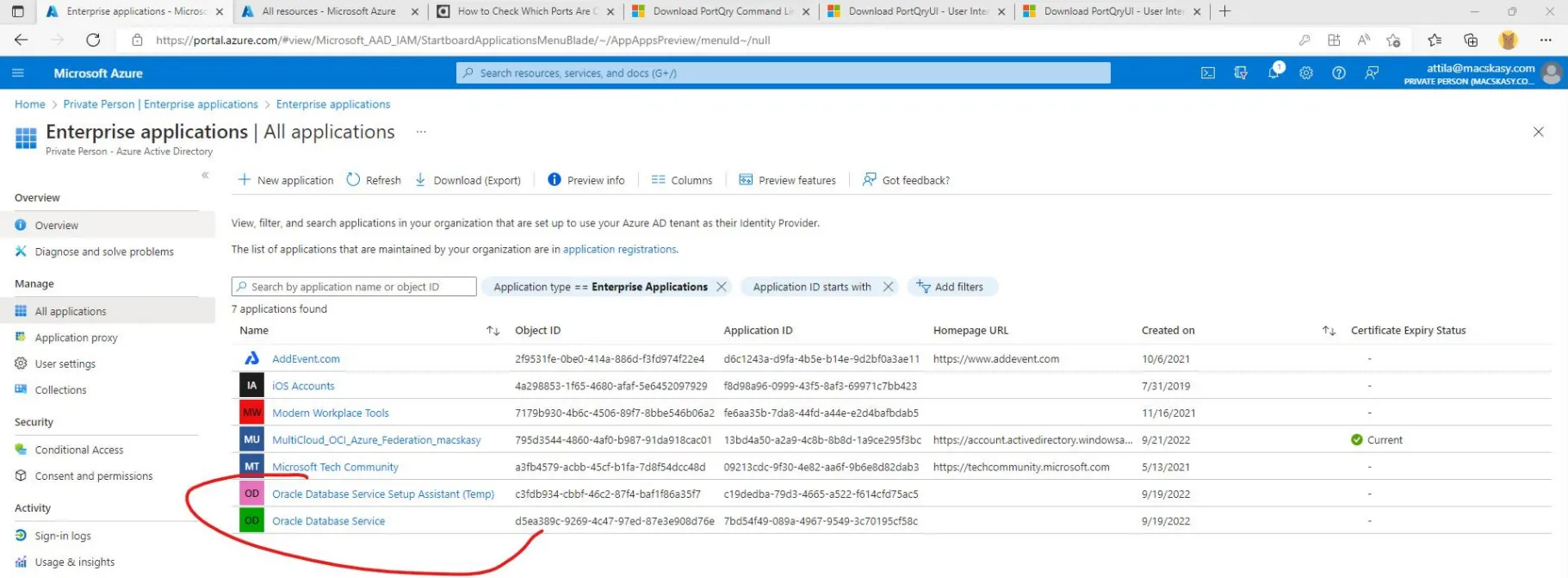
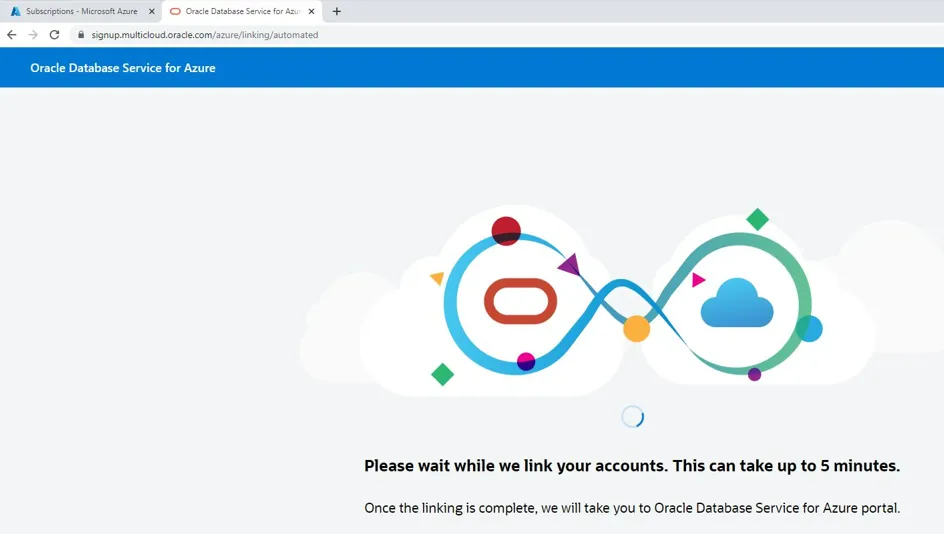
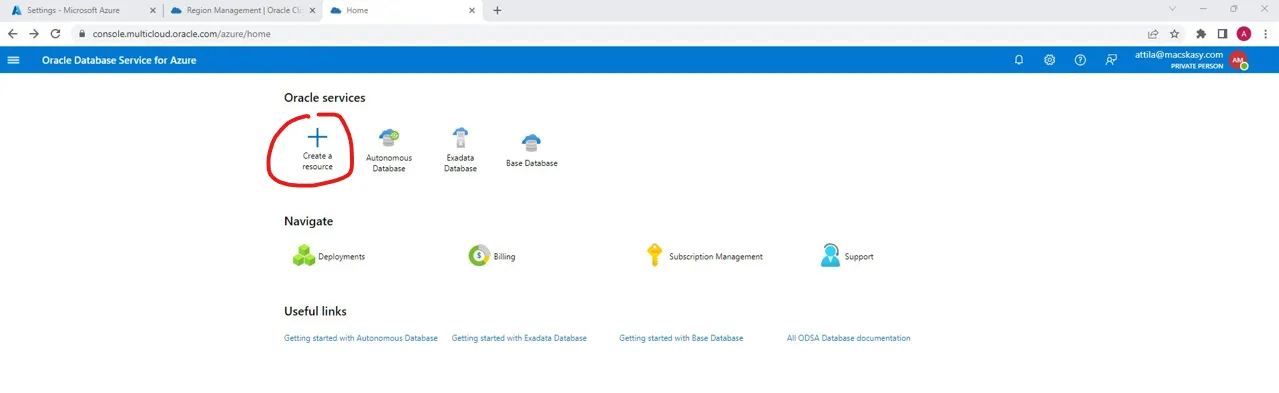
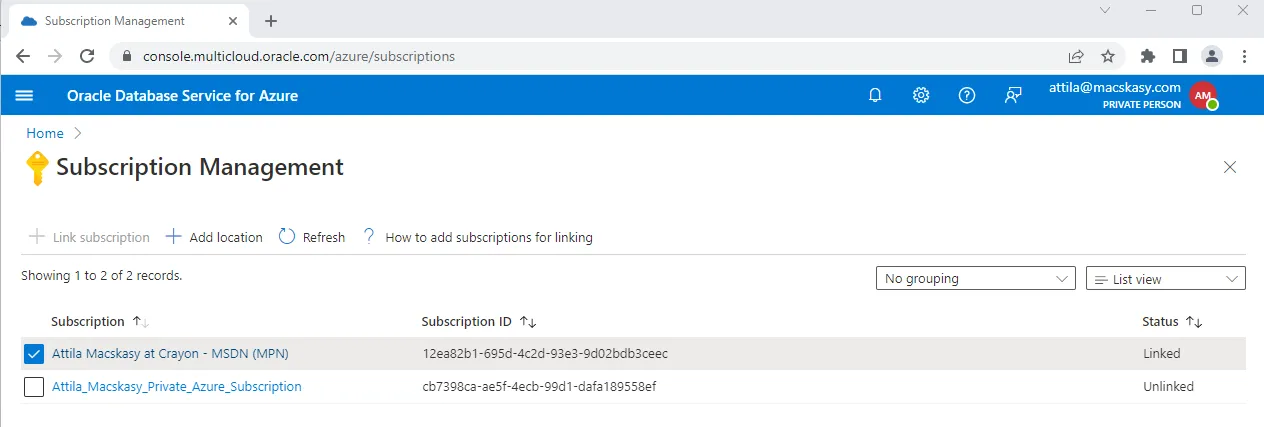
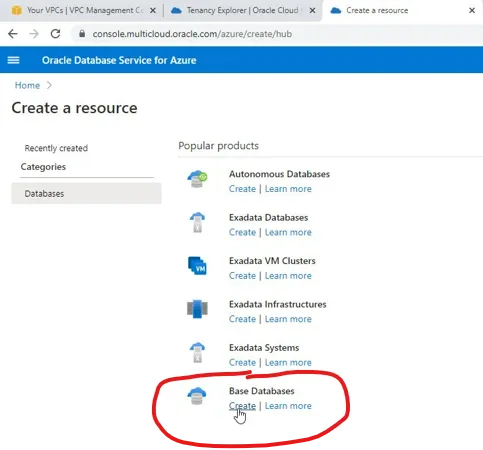
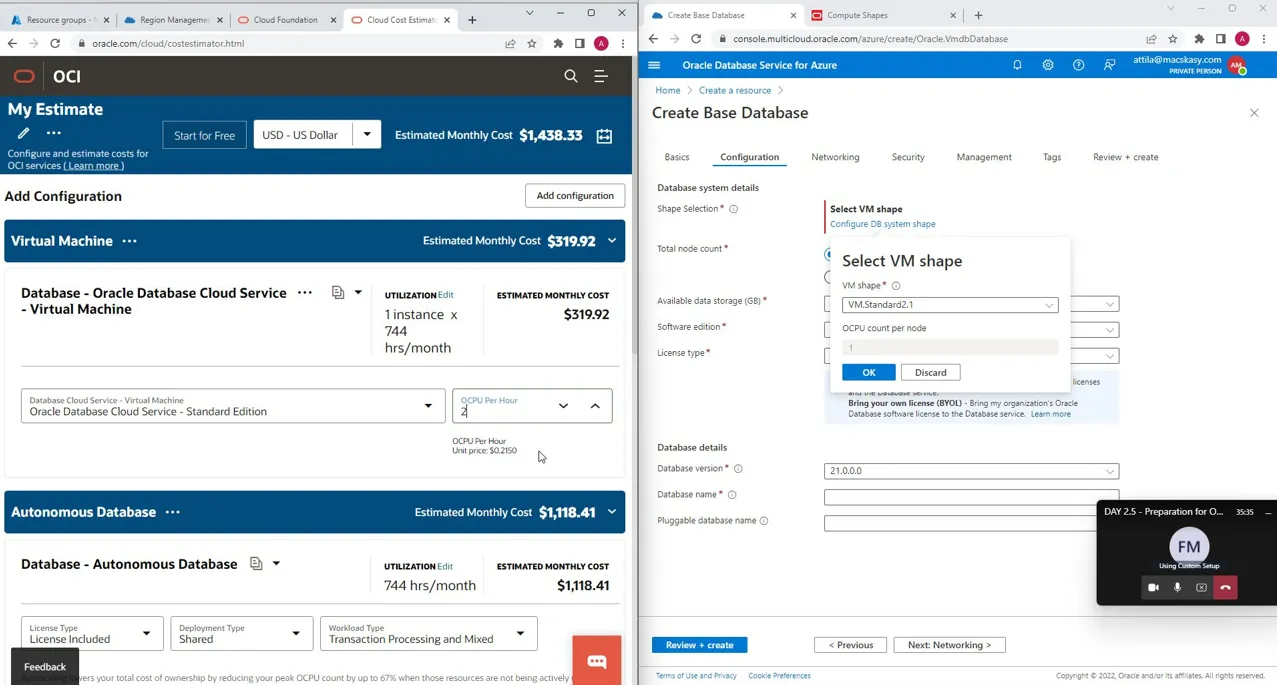
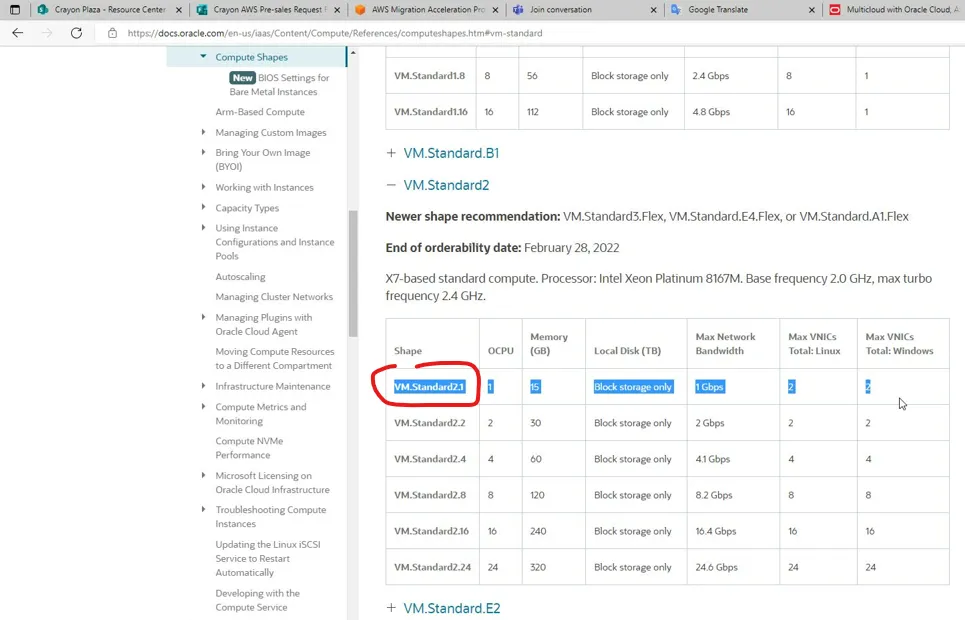
My plan was to connect regions that are close to each other and to my location (in case I add an on-premises link to the comparison). I picked Frankfurt for both Azure resource group and networking and for Oracle DB Services. I used the fully automated configuration. Hopefully, this full-screen-related error message will not show up for you (I tried various browsers and I am not in full-screen mode) - anyways, hit the “Proceed anyway” button, that works. Do not get me wrong, I respect the developer team who put together this, it is amazing! You need to pick a Microsoft Azure subscription to link. Ensure you have all required permissions granted to the user (on the Azure Subscription) doing the link. Remember, you need to have permission on Azure Active Directory to register a new service. The user is a global admin in my own Azure Active Directory. The cloud-link wizard registers an Enterprise Application to Azure Active Directory called “Oracle Database Service” A fantastic “please wait” picture… After waiting a few minutes, it will do the magic and map Azure resources in Oracle Cloud and create the CloudLink in the background. *** update 2 months later since I tried first - they improved the picture :-) That’s it. Oracle-hosted Azure-like portal is ready to provision resources in both OCI and Azure. If you check the Status column, it says Linked. The cheapest option is the Base Database. It is actually a managed VM with an Oracle DB on it. I think it is a smart idea to check prices using Oracle Cloud Cost Estimator. Autonomous Database obviously costs more than Standard Edition Oracle Database on a cheap VM shape. I used VM.Standard series VMs with 1-2 OCPU and 15-30GB RAM. That’s more than enough for testing this service.
In my next article, I will share my ideas of how to connect Azure services to the newly provisioned OCI database utilizing the automatically provisioned and free-to-use OCI-Azure cloud-link.
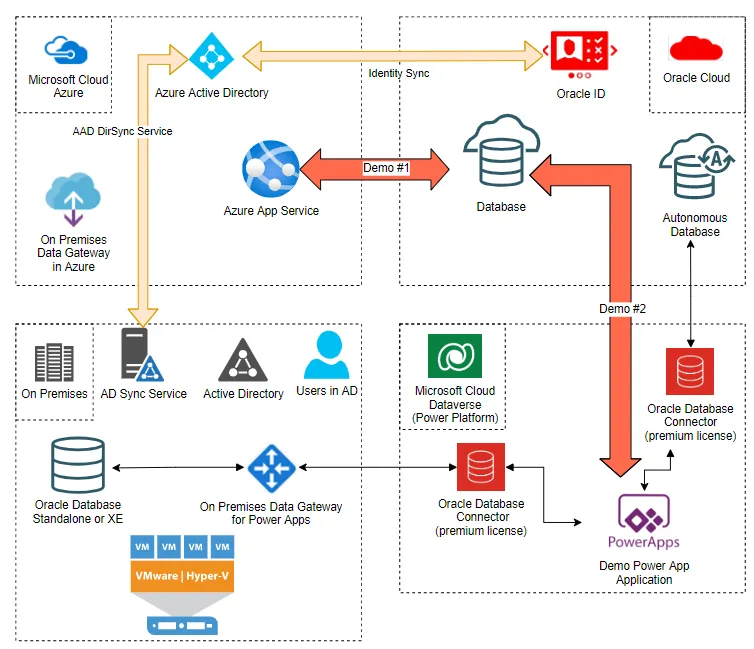
Above is my first design idea of connecting Azure App Service and Power App via the premium connector. Over time I noticed that this design needs some change and improvement.
By the time I am writing this article, everything I wanted to test worked for me, stay tuned, I will continue to share my learnings on Azure Oracle Services / Oracle Database Service for Azure.