Bulk-import based Azure and AWS price comparison
In recent months, I’ve worked with customers to quickly generate Azure and AWS pricing estimates, a critical step for securing vendor funding in lift-and-shift migration projects. However, moving assessment data between migration and pricing tools can be challenging.
In recent months, I’ve assisted customers in rapidly generating Azure and AWS pricing estimates, a crucial step for securing vendor funding in lift-and-shift migration projects. When we nominate an opportunity, cloud vendors need a clear understanding of the potential workload, as larger workloads often attract more sponsorship. Both the Azure Migration and Modernization Program (AMMP) and AWS Migration Acceleration Program (MAP) operate on the same principle: accurate cloud consumption estimates, backed by detailed workload lists, are essential to demonstrate the project’s scope and secure the necessary support.
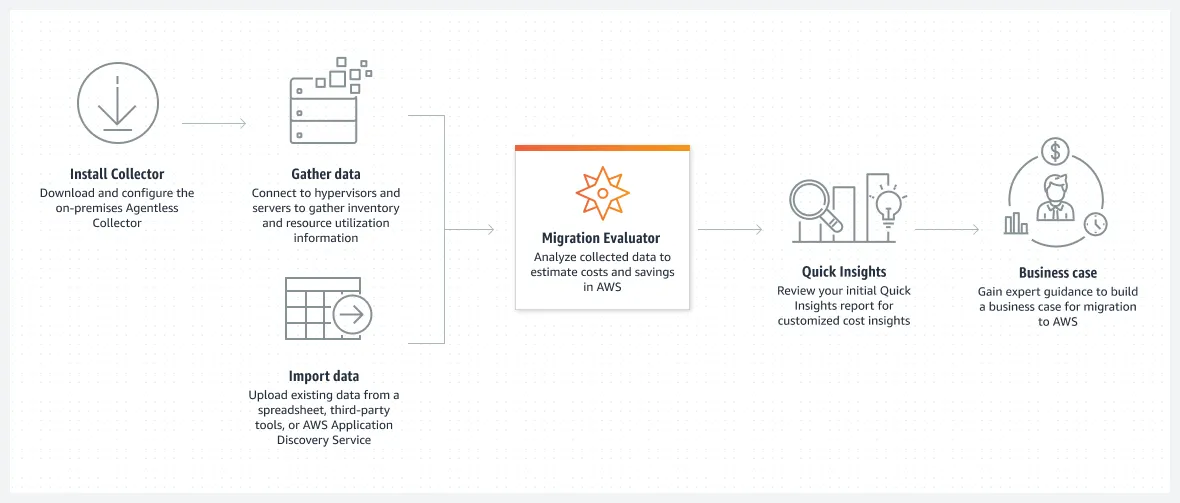
This article was written before I started testing AWS Migration Evaluator Features - Build A Business Case For AWS - Amazon Web Services, which offers a very nice template for data import Migration Evaluator Resources - Build A Business Case For AWS - Amazon Web Services.
I can’t wait to test it, learn more, and compare results with Azure Migrate. I have high expectations, as AWS offers quite mature tools for the discovery/assessment phase.
The AWS template has the following columns:
Server Name, CPU Cores, Memory (MB), Provisioned Storage (GB), Operating System, Is Virtual?, Hypervisor Name, Cpu String, Environment, SQL Edition, Application, Cpu Utilization Peak (%), Memory Utilization Peak (%), Time In-Use (%), Annual Cost (USD), Storage Type
(Example data: Apache01, 4, 4096, 500, Windows Server 2012 R2, TRUE, Host-1, Intel Xeon E7-8893 v4 @ 3.2GHz, Production, SQL Server 2012 Enterprise, Service Now, 60.00%, 95.00%, 100.00%, 3400, HDD)
Migration Evaluator is deployed on-premises and leverages read-only access to VMware, Hyper-V, Windows, Linux, Active Directory and SQL Server infrastructure.
Azure Pricing Calculator is an online tool designed for calculating costs by adding resources individually. While it does not support bulk import, Azure Migrate - Cloud Migration Tool | Microsoft Azure does. Azure Migrate offers a seamless way to discover, assess, and migrate workloads. It supports both online and offline discovery methods: an online migration discovery appliance connected to Hyper-V or vCenter, and offline discovery through bulk import of custom/manual template-based CSV files or RVTools exports. It also supports online discovery by connecting Hyper-V or VMware vCenter sources - that’s obviously a better way because it will collect performance data as well.
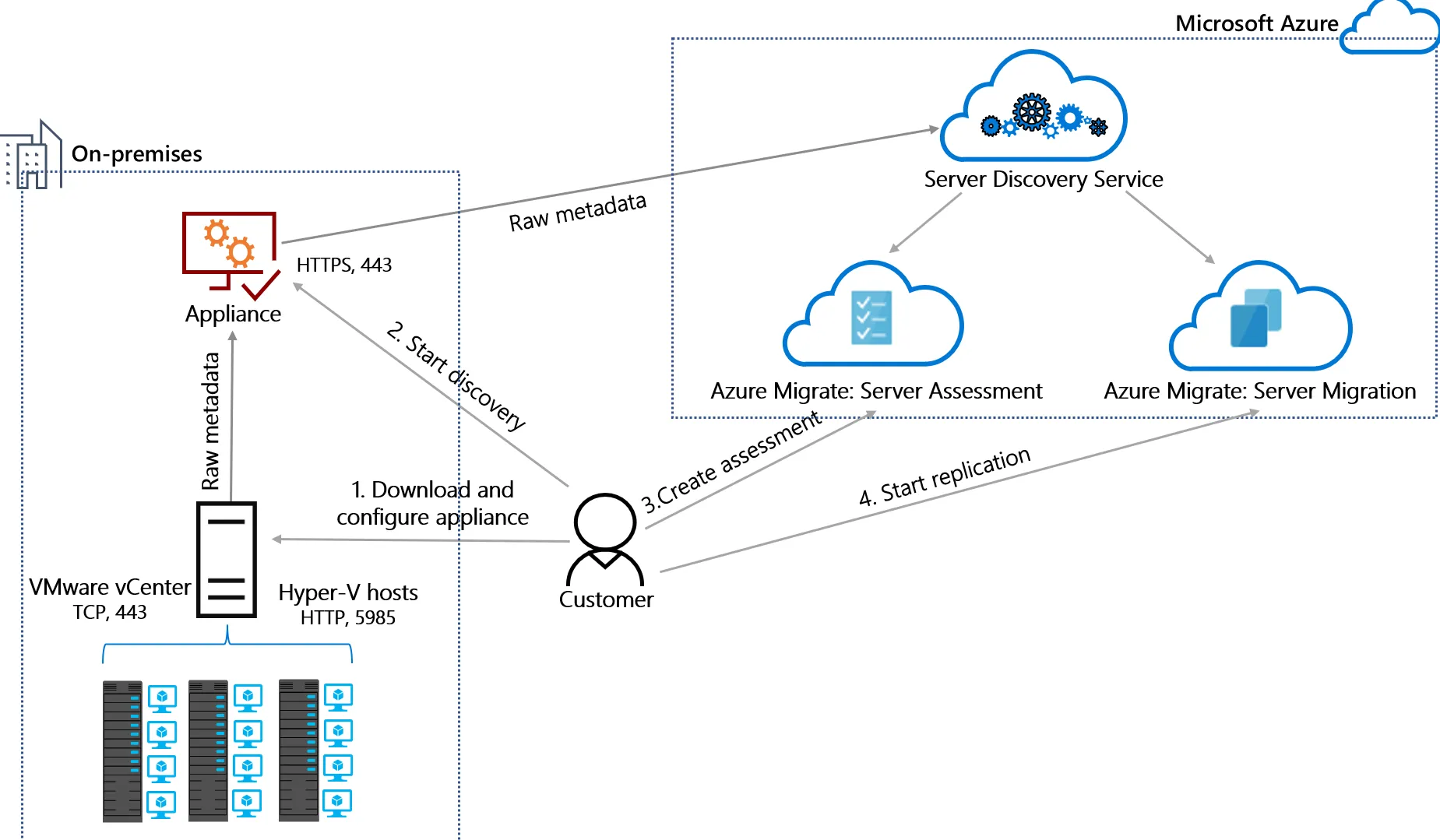
- Discovery and Assessment: Azure Migrate can discover on-premises servers and assess their readiness for migration to Azure. It evaluates VM compatibility, performance metrics, and cost estimates.
- Migration Guidance: The tool offers step-by-step guidance on migrating workloads, including application dependencies and infrastructure mapping.
- Integrated Tools: Azure Migrate integrates with other Azure services like Azure Site Recovery and Database Migration Service, offering a holistic migration solution.
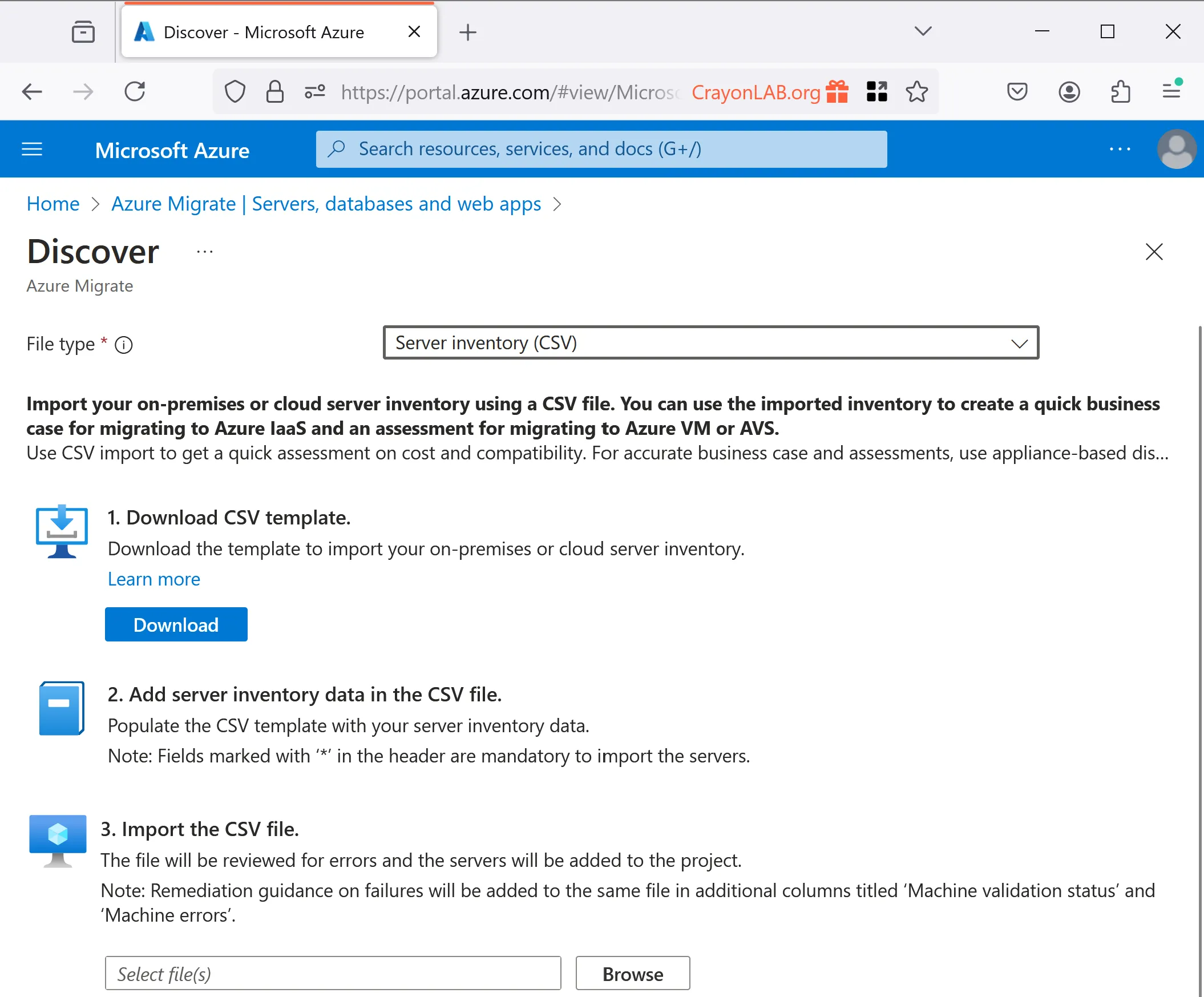
For VMware vSphere sources, I highly recommend exporting RVTools data and importing it into Azure Migrate to create an offline estimate. RVTools - Download (robware.net) is straightforward to download and install, and it quickly connects to your vCenter server to extract all the necessary information for Azure Migrate to create an assessment.
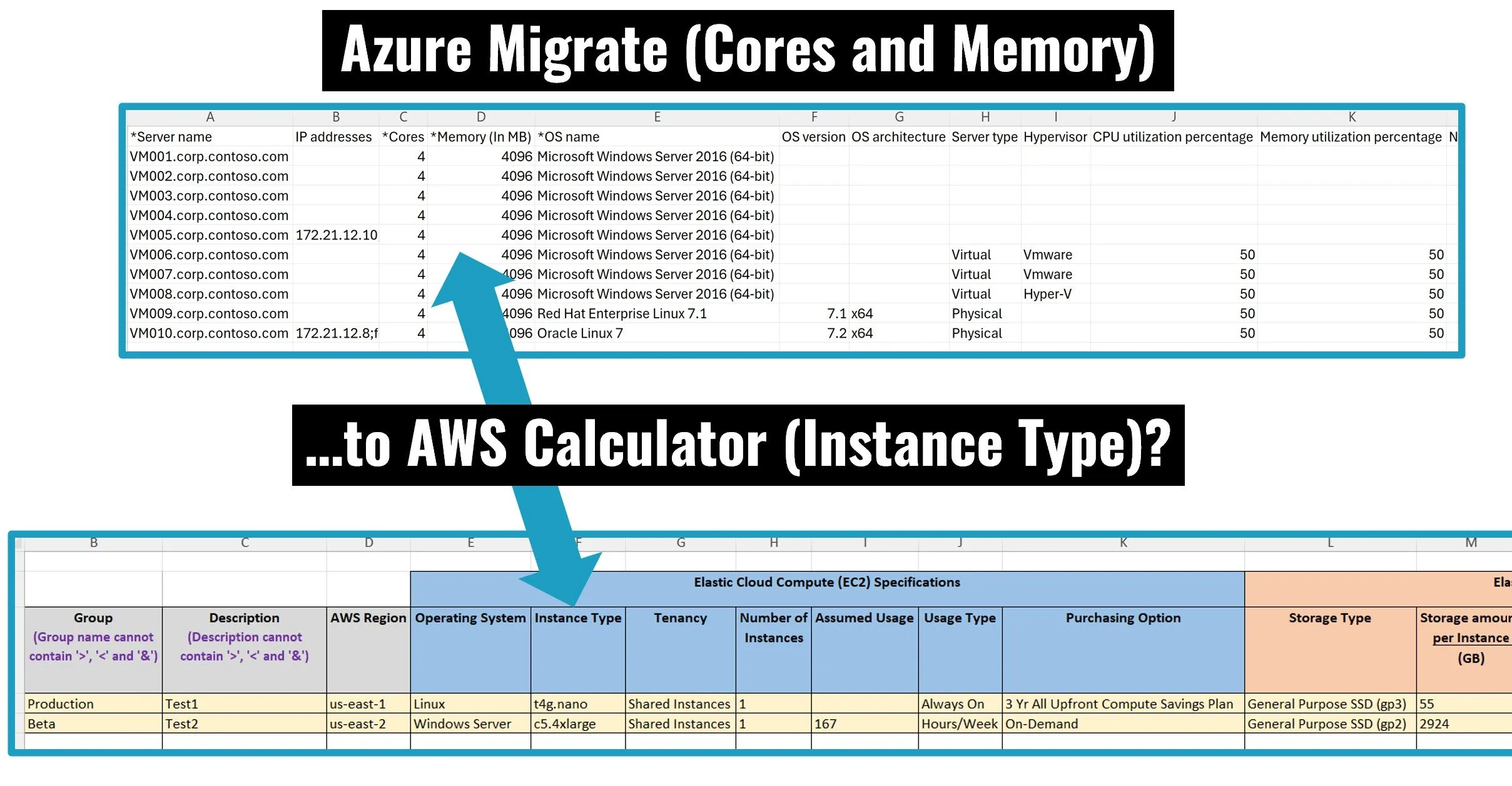
If the vCenter/RVTools option is not available, you can alternatively provide the necessary data in the required CSV format. Below is a snapshot of the AzureMigrateimporttemplate.csv, highlighting the four most important columns needed for a quick estimate (excluding historical performance data like disk IOPS or network throughput).
Required data includes Server name, Cores, Memory (In MB) and OS name. Quite similar to AWS Migration Evaluator.

AWS Pricing Calculator allows users to input (both portal and bulk Excel-based import provided) specific details about their current on-premises infrastructure or planned AWS usage. Key features include:
- Detailed Cost Estimates: Users can receive detailed estimates for a wide range of AWS services, from computing and storage to networking and databases.
- Custom Scenarios: The calculator supports the creation of custom pricing scenarios to match unique business needs.
- Export and Share: Results can be exported and shared with stakeholders for collaborative decision-making.
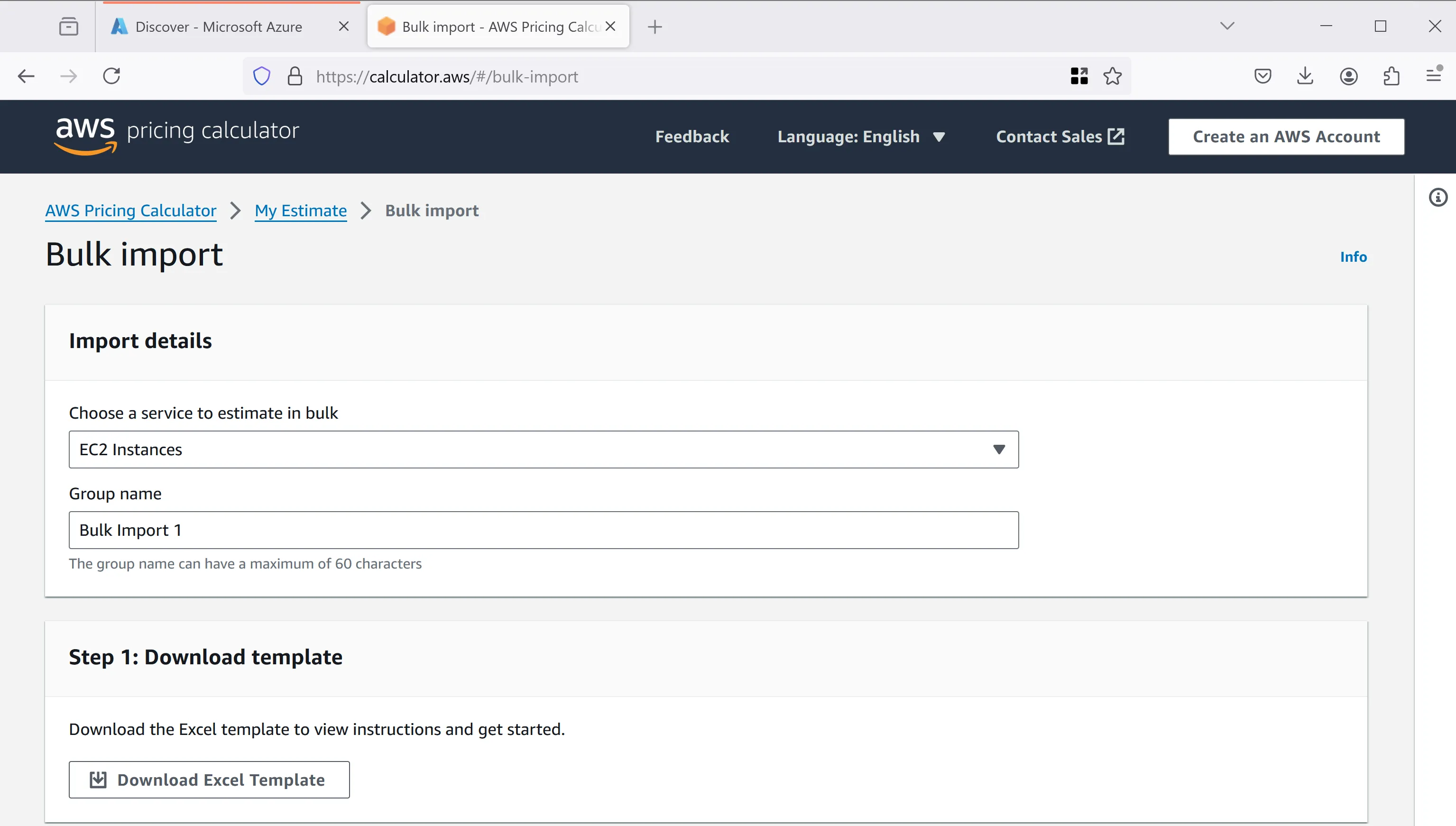
Below is a snapshot of the Amazon_EC2_Instances_BulkUpload_Template_Commercial.xlsx; this is quite different from the Azure Migrate or AWS Migration Evaluator templates.

The idea of grouping by Instance Type saves time; however, you need to multiply rows by Operating System (Linux/Windows). Below is my mapping of AWS Calculator and Azure Migrate templates.
Description - I used this to map with Azure Migrate’s *Server name (FQDN) because there is no other field to make it specific. The problem starts if this line represents multiple instances (see Number of Instances)
Operating System - in Azure Migrate, we have a more sophisticated (detailed) *OS Name
Number of Instances - in Azure Migrate import, each line represents one VM; in here, you can group and multiply based on Instance Type
Instance Type (described below)
Your most important column, and unfortunately, this is quite different from Azure Migrate’s Cores and Memory. You can try to get help using large language models like OpenAI to provide the best AWS instance based on Cores and Memory only, however, this is not the most accurate way of getting the job done. A better way is to use AWS Instance Type Selector: Compute – Amazon EC2 Instance Types – AWS, but it is very time-consuming (one by one). I prefer using AWS CLI and using the describe-instance-types command as per my example. Even better is to use Migration Evaluator because its bulk import template uses Cores and Memory, similar to the Azure Migrate import CSV, so you don’t need to research AWS Instance Types.
aws ec2 describe-instance-types --filters "Name=vcpu-info.default-cores,Values=<min-cores>,<max-cores>" "Name=memory-info.size-in-mib,Values=<min-memory>,<max-memory>"Replace <min-cores>, <max-cores>, <min-memory>, and <max-memory> with your specific requirements in MiB (1 GiB = 1024 MiB).
There are several ways of automating the execution of the command above and loading the proper instance types to the AWS calculator’s template using the Azure Migrate template format.
Keep in mind that there are many configuration options beyond just cores and memory. As an architect, it’s your responsibility to ensure the target cloud service meets the source system’s requirements while offering the best possible service.